The Ultimate Guide to Google Business Profiles for Restaurants (2026)
I’ll show you how to set up, verify, and optimize your restaurant’s Google Business Profile so you show up as the top choice in local searches.
- Your Google Business Profile makes the first impression on your potential customers. 60% of restaurant customers discover where to eat using Google Search or Maps.
- 84% of smartphone users add “near me” to find restaurants. By including accurate information about your restaurant and location, potential customers will be able to find you where they're searching.
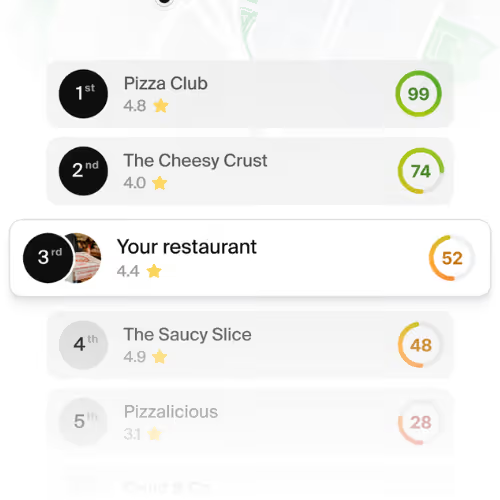
- Google decides which restaurants to display and in what order based on relevance, distance, and prominence. You don’t have 100% control over when your restaurant shows up in a potential customer’s Google Search or Maps search, but you can influence what information Google has about your restaurant using your Google Business Profile; otherwise, Google will build an unverified Profile from whatever it can find online.
- The primary category you choose for your restaurant is the most important field on your Business Profile. Within the “Restaurant” category, there are almost two dozen subcategories, such as ‘fast food,’ ‘Thai,’ or ‘hamburger,’ to narrow down your cuisine.
- Customers will make split-second decisions based on your photos, rating, and operating hours Potential patrons see several restaurant options within the Map Pack of Google search results or in the list shown on their Map and will quickly decide which are worth a deeper look.
- You can't remove a review you don't like on your profile, but you can report it. If you have evidence to prove that a review is fake or inappropriate, Google will swiftly remove it, but Google is the final judge.
- Review velocity is just as important as your average rating. Having a five-star rating from only five reviews is not as trustworthy in Google's eyes or your customers’ eyes as a restaurant with a 4.5 rating and 200 reviews, seven of which are new this week.
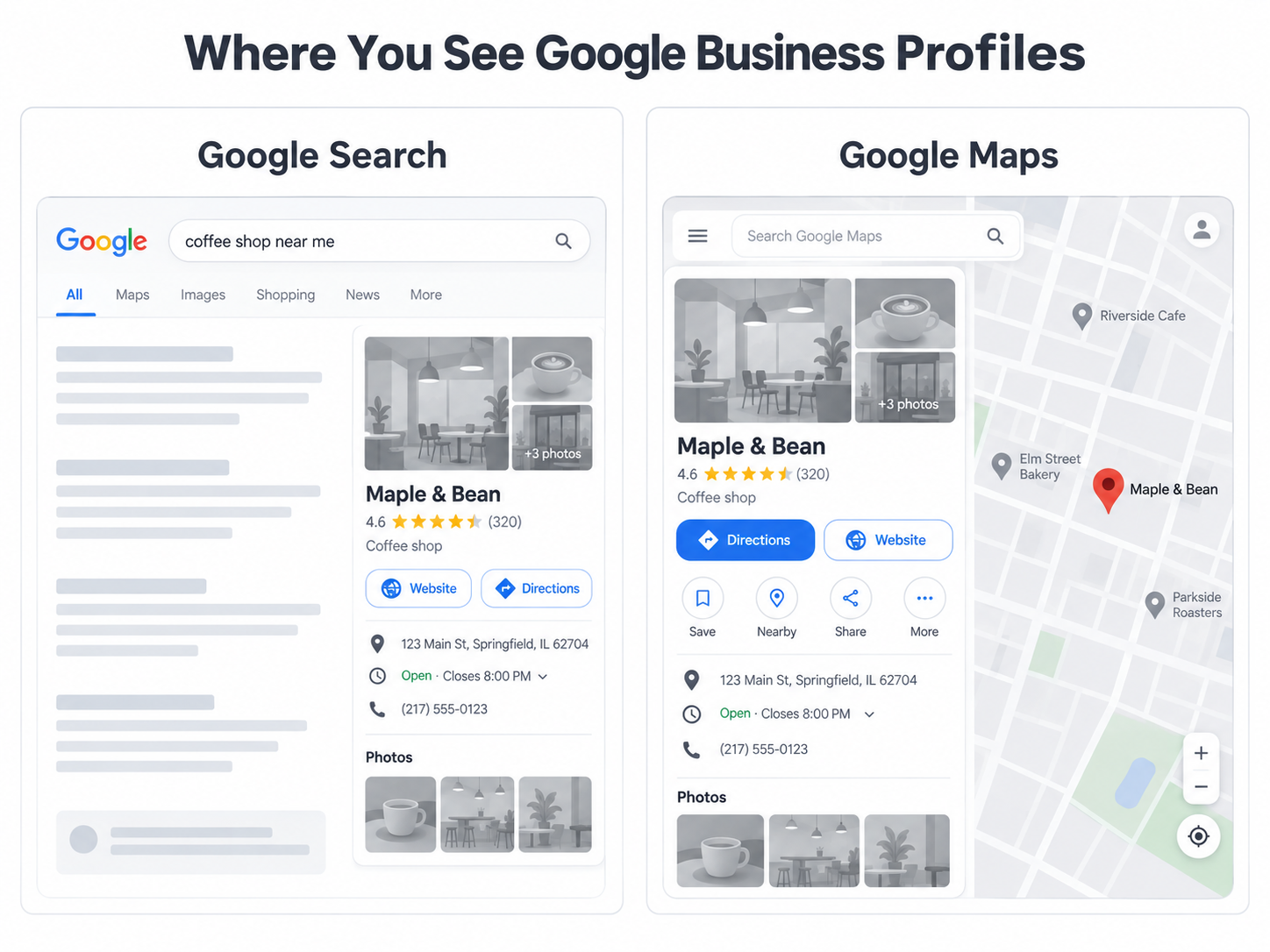
You’ve seen Google Business Profiles whenever you look for a business using Google Search or Maps. The ones that show up have verified and set up their Google Business Profiles.
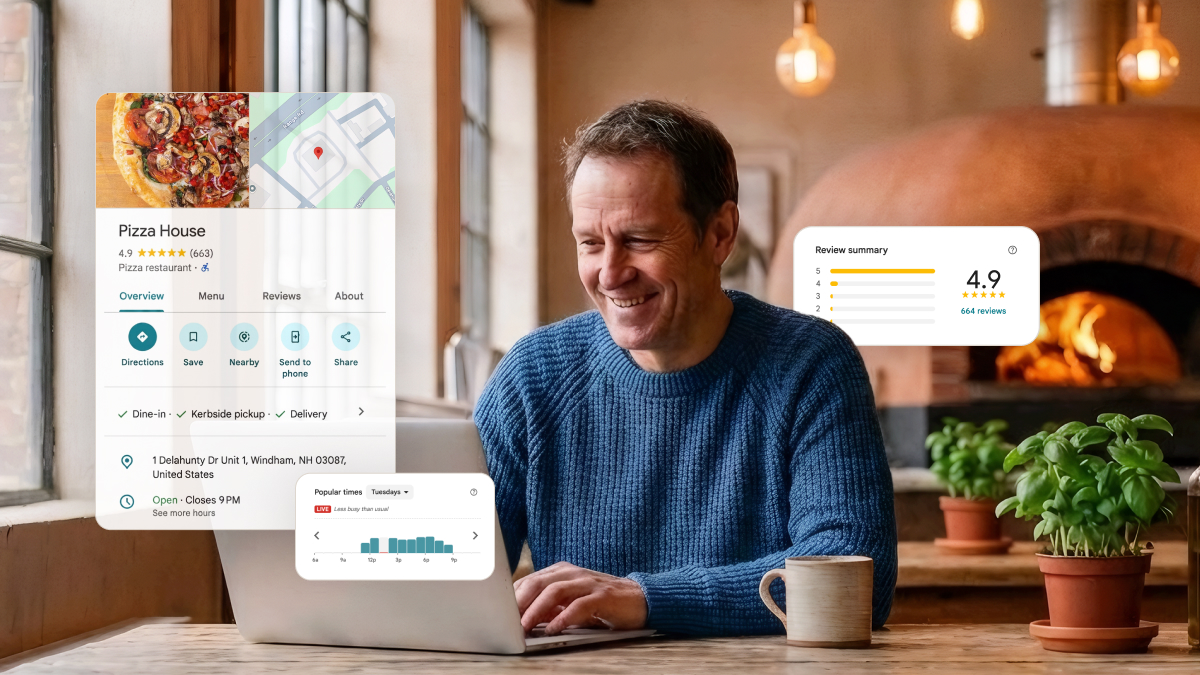
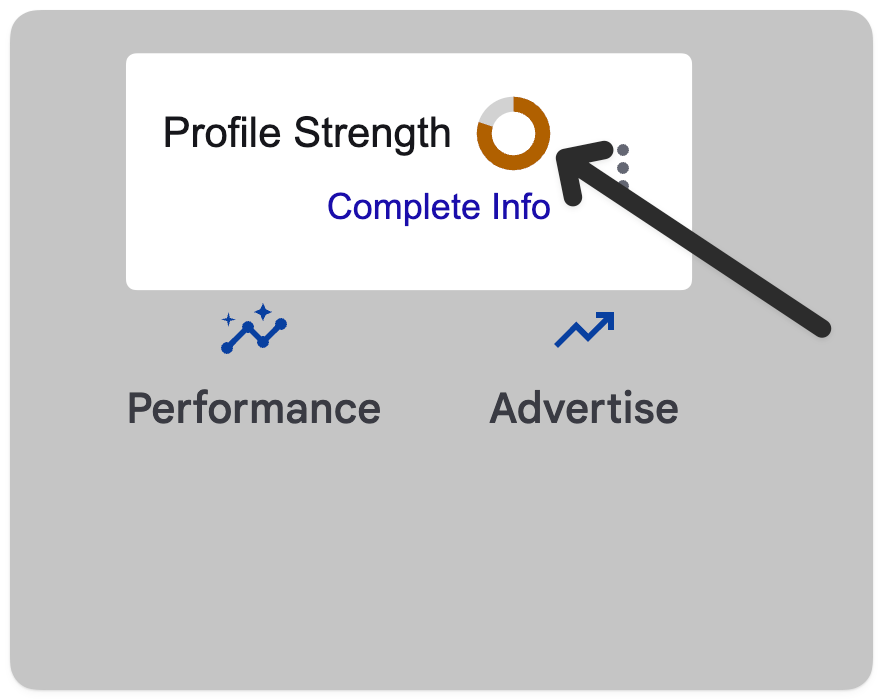
Maybe you’ve set up your Business Profile in the past, but it’s been a while. And whenever you Google your business, Google shows that your ‘Profile Strength’ could be improved if you complete its tasks.
I’m a restaurant founder myself. I have eight pizzerias across Texas, so I know how important our online presence is. I’ll explain why your “Google storefront” isn't something you set and forget. It’s also not just another local listing you need to maintain.
Your Google Business Profile is your first impression. That’s because most people choose where to eat based on what Google shows them in the Map Pack. They’ll decide quickly, judging your restaurant by the pictures (whether yours or from a review), the rating, and how far away it is.
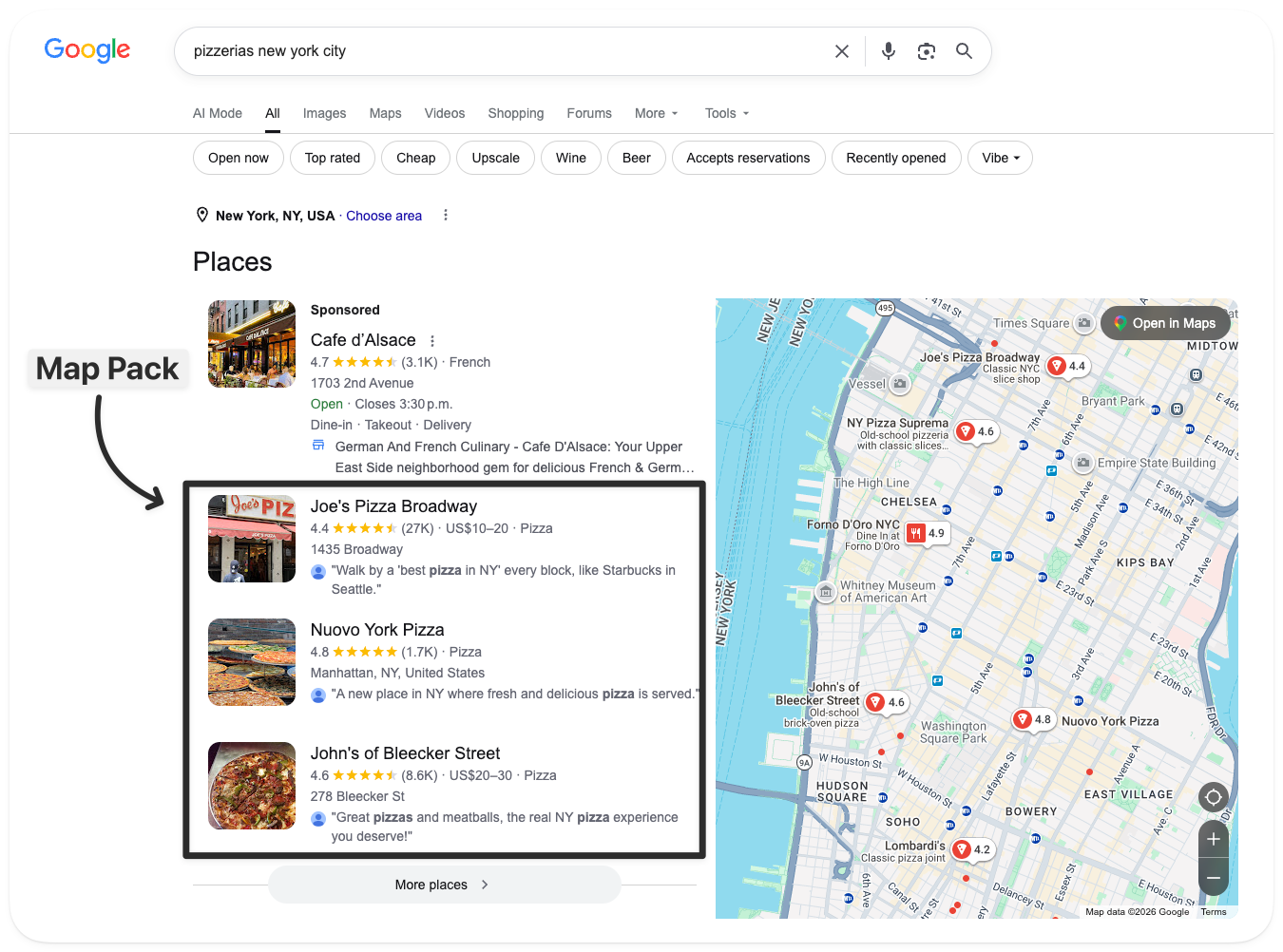
All of this happens without anyone leaving Google or Maps. That’s why your Google Business Profile is so important.
So if you want to increase foot traffic, get more online orders, and stand out from your competitors, let’s dig into creating and optimizing your Google Business Profile.
What is a Google Business Profile?
A Google Business Profile (GBP, for short) is your restaurant’s storefront on Google Search and in Google Maps. A Business Profile determines how you show up when people search for a nearby restaurant like yours. You don't have to pay for this listing. You can claim your Business Profile for free, and it takes about 30 minutes to set up.
You may have heard “Google My Business” before. Google renamed it to “Google Business Profile” in 2021. However, many still use the names interchangeably, and I’ll often say “Business Profile” for short.
You can post photos of your popular dishes, your dining room, or your entrance. It’s also where you list your operating hours and menu, and add links to your restaurant’s website, online ordering platform, and social media pages. Most importantly, your Business Profile hosts your reviews, which is critical to helping customers find you and decide whether to dine with you. Creating a Google Business Profile is a core part of your restaurant’s local SEO strategy.
Let’s make this concrete with an example.
When Googling “Italian restaurants in New York City,” you see a list of three restaurants, with a Map Pack showing their location and average rating.
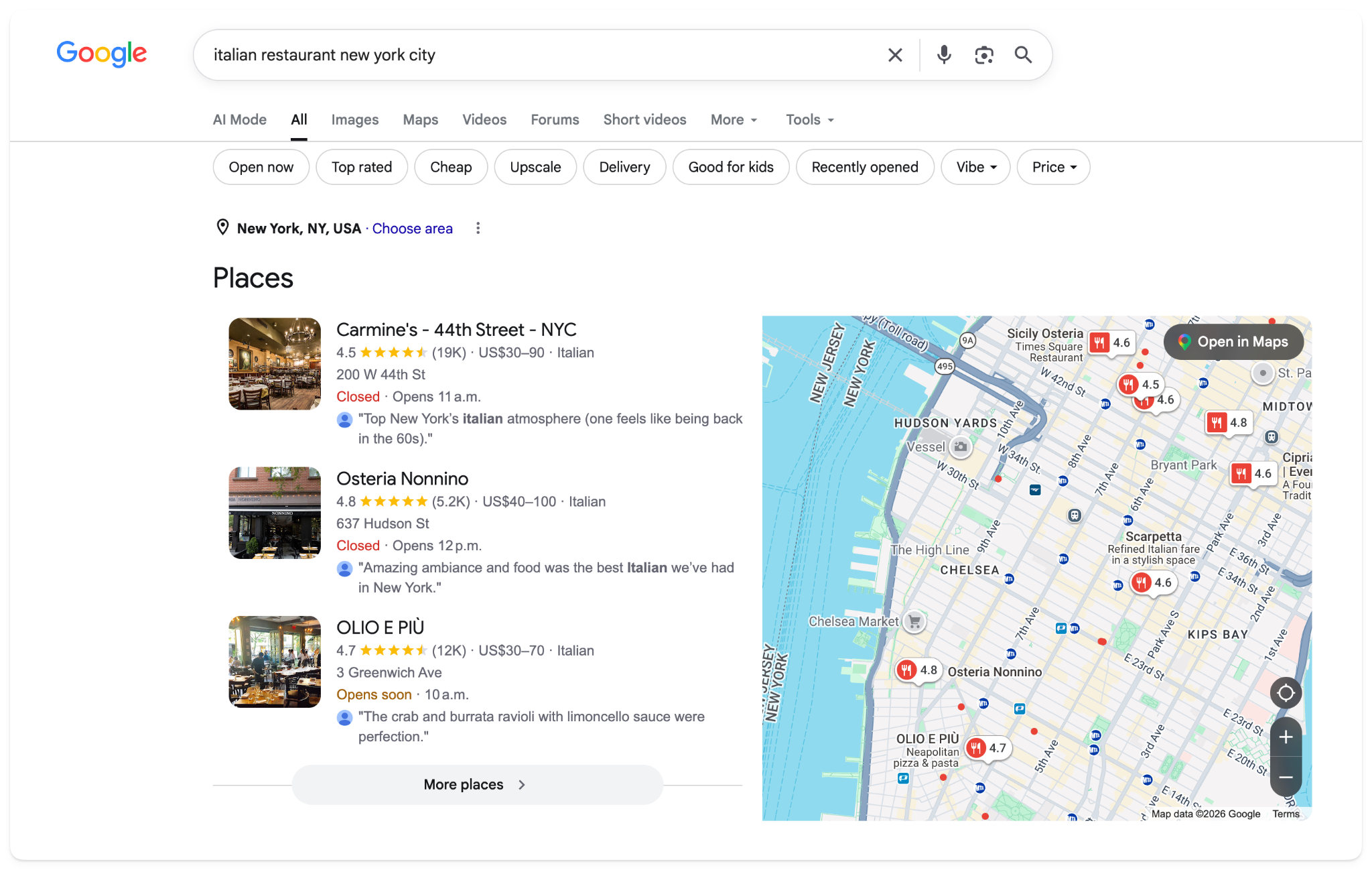
Alternatively, if you use Google Maps on your phone, you’ll see a sponsored option before other results.
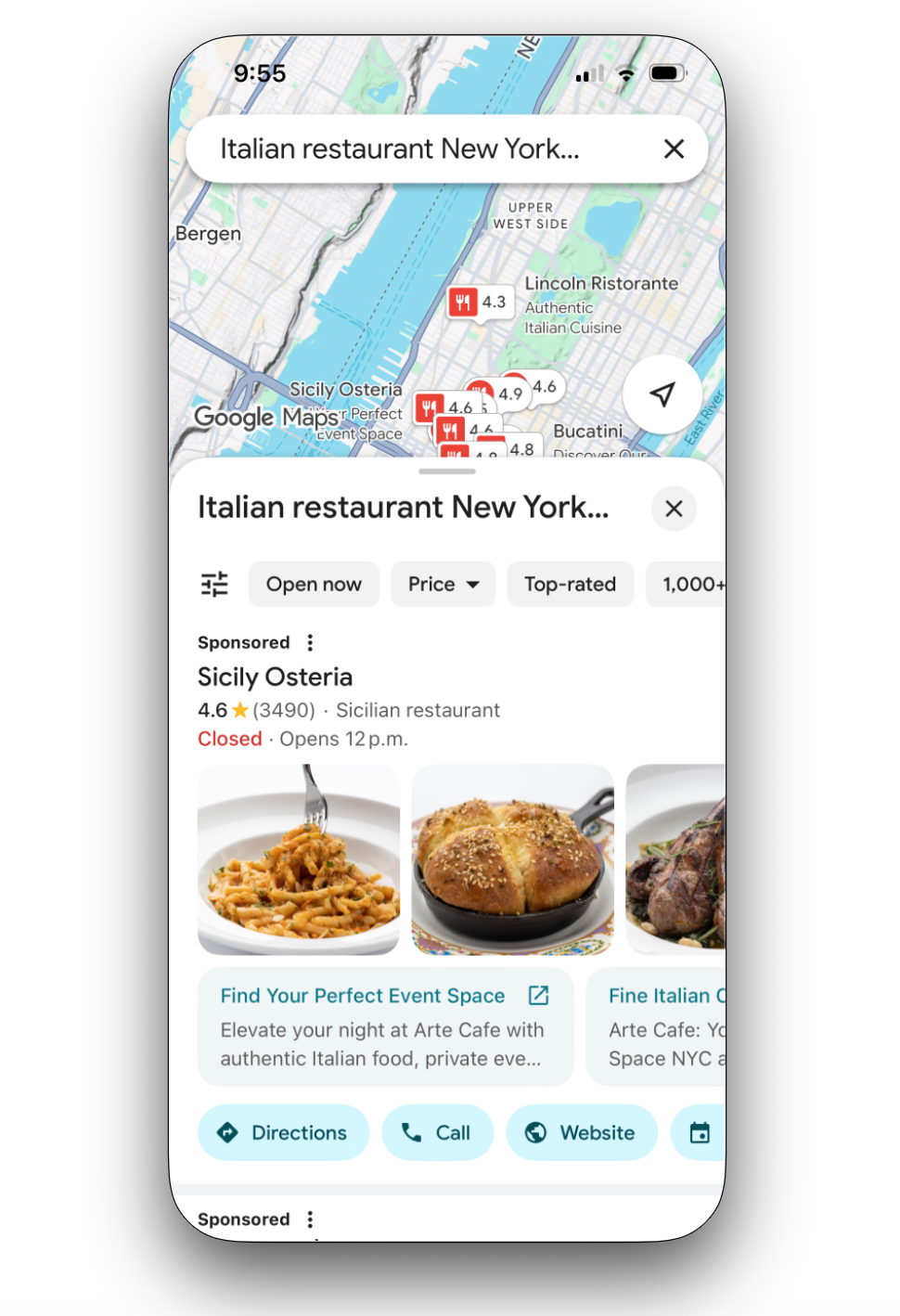
How does Google decide that those restaurants show up first? Some may pay to show up first, as in the mobile Maps example. But if you don’t pay your way to the top, the deciding factor is often what’s in each restaurant’s Google Business Profile.
This all may seem like a lot.
You already have a website with these details. Why do you have to add it all again to Google? I hear you.
Let me explain why you can’t ignore your Google Business Profile.
Why your Google Business Profile matters for your restaurant
To explain why having a Google Business Profile set up correctly and up-to-date is non-negotiable, let’s list all the ways people can find your restaurant today:
- They can drive or walk by and decide to stop in.
- They see your social media posts about your best dishes.
- A friend may tell them they “have to try this place.”
- They may see your signs around town.
- Maybe there’s a coupon in the mail or an ad in the newspaper.
- Or they may pull out their phone and search for “restaurants near me,” deciding within a couple of minutes which looks best.
Seeing your restaurant on Google or Google Maps is how most first-time patrons will find and judge your restaurant. How do I know this? Many studies back this up.
Look at this 2023 study by PYMNTS, a payments and fintech data platform. They found that over 60% of consumers discover restaurants on Google. Another study showed that the average business’s Google Business Profile gets 7 times more views than its website in Google search.
If that isn’t enough, do I even need to share how often people use their phones to find restaurants while on the go? Uberall, a marketing firm, found that 84% of smartphone users add “near me” to find restaurants.
Township Line Pizza in Drexel Hill, PA, had zero top-3 Google rankings before using Owner. They cleaned up how they show up in local search and now rank in the top 11. Google search alone brings in roughly $2,390 a week.
Essentially, your Google Business Profile is the first, and sometimes only, impression for many potential patrons.
If you want a chance of winning their business, you need to show up where people search. Let’s look at how you can do that.
How Google decides which restaurants show up
When someone searches for a restaurant, Google uses three factors to decide who shows up.
These factors are Relevance, Distance, and Prominence.
- Relevance - this is how closely your restaurant matches what people are asking for. For example, should you show up if someone asks for “a Portuguese Bakery that does delivery”? Google looks for businesses with attributes that match a person’s search. Your Google Business Profile contains these key attributes.
- Distance - this is how far away you are from the person searching. In a busy metro area with many restaurants, Google might show a few places within a 1- to 2-mile radius. In a wider rural area, results may come from a 10- or 20-mile radius. So you can be #1 for one search and #5 for another. Location matters.
- Prominence (or better understood as ‘popularity’) - this is your reputation online, particularly your rating among Google reviews (something we’ll get into in more detail below). Do you have news articles linking to your website? Do you average four stars or above on Google? Do you consistently get reviews, or has it been a while? Do people search for your restaurant by name? These are how Google measures online popularity.
This isn’t the only thing Google looks at. There’s much more to restaurant SEO that Owner’s restaurant websites keep you on top of.
But you might look at these factors and not know what to make of it. “This is all great, but how does knowing this help me stand out?”
When you know what factors Google uses, it becomes clearer what your Google Business Profile and website need to include. And when you include those details (like your hours, your address, your best dishes, and the vibe of your restaurant), you’ll show up more often when people search for a restaurant like yours near them.
You could rely on your website, but if you don’t have a Google Business Profile, Google will create one for you as an “unverified business” using what it can learn about you.
Now let’s walk through how to set up your restaurant’s Google Business Profile from scratch, or claim it if one already exists.
How to claim and set up your restaurant's Google Business Profile
Setting up your Google Business Profile is completely free. It’s not hard, but it takes time. You'll need to add all your restaurant details and complete a verification process.
The verification process is tedious, but necessary. It ensures only you can claim the business as your own.
Here are the steps.
1. Find and claim your listing
There are two ways to claim your business.
First, if you've never set up a Google Business Profile, it’s easiest to start from the Google Business home page where it prompts you to ‘Create your profile’.
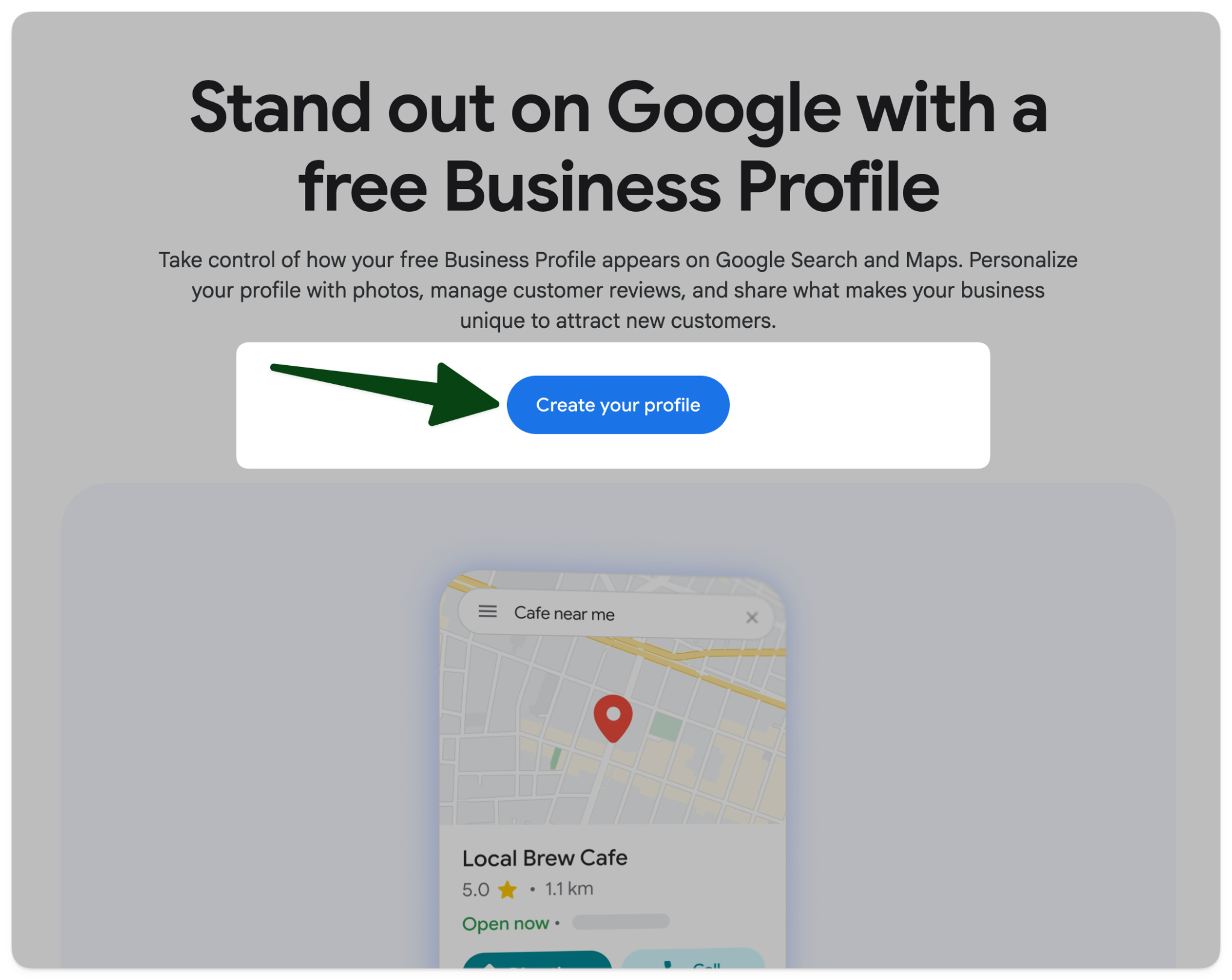
From there, it will guide you through all the steps to set up your Google Business Profile.
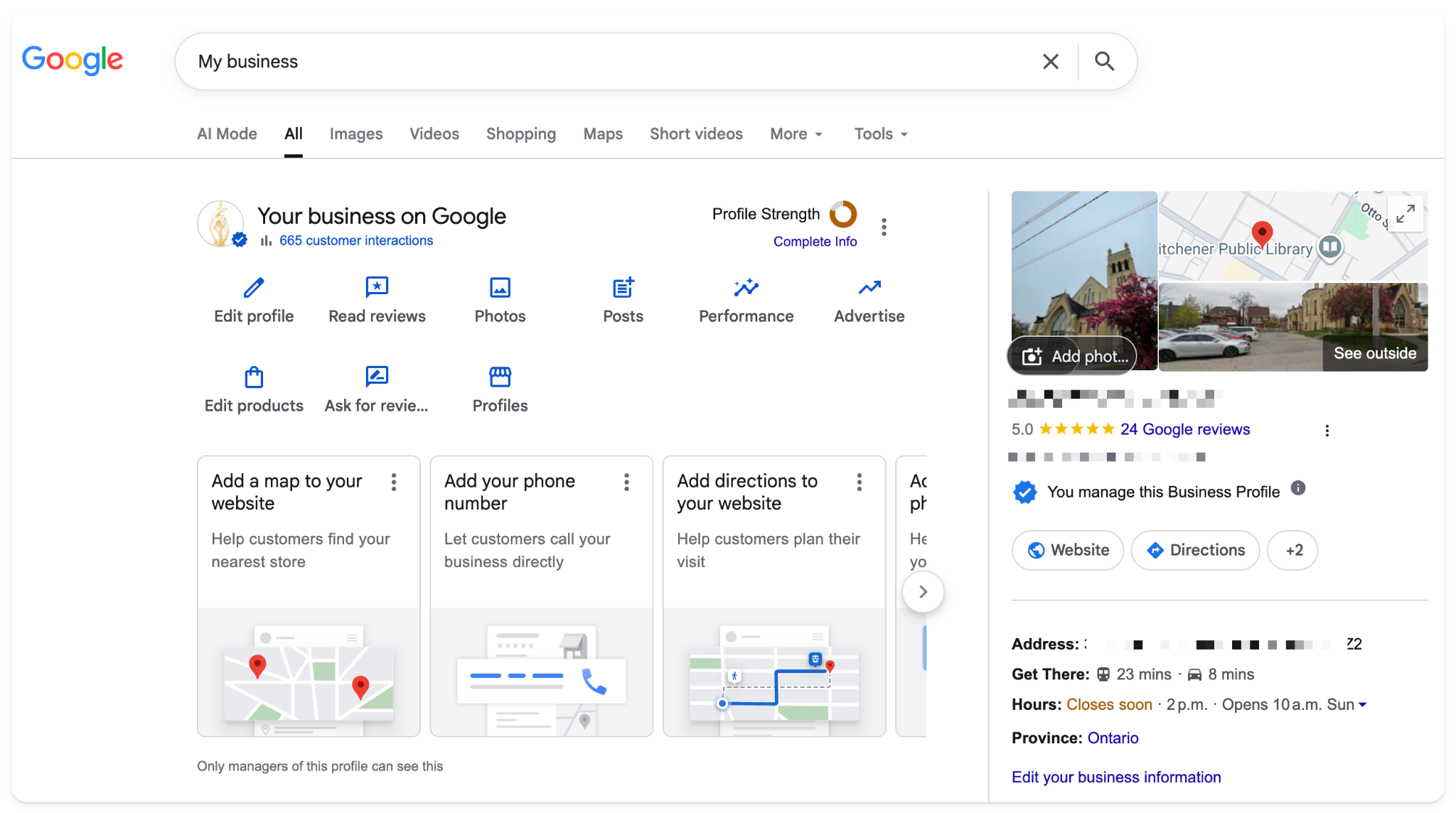
Alternatively, you can also search your business’s name in Google Search or Google Maps. If you have already set up a GBP in the past, search “My business” in Google to see your profile dashboard within the search results.
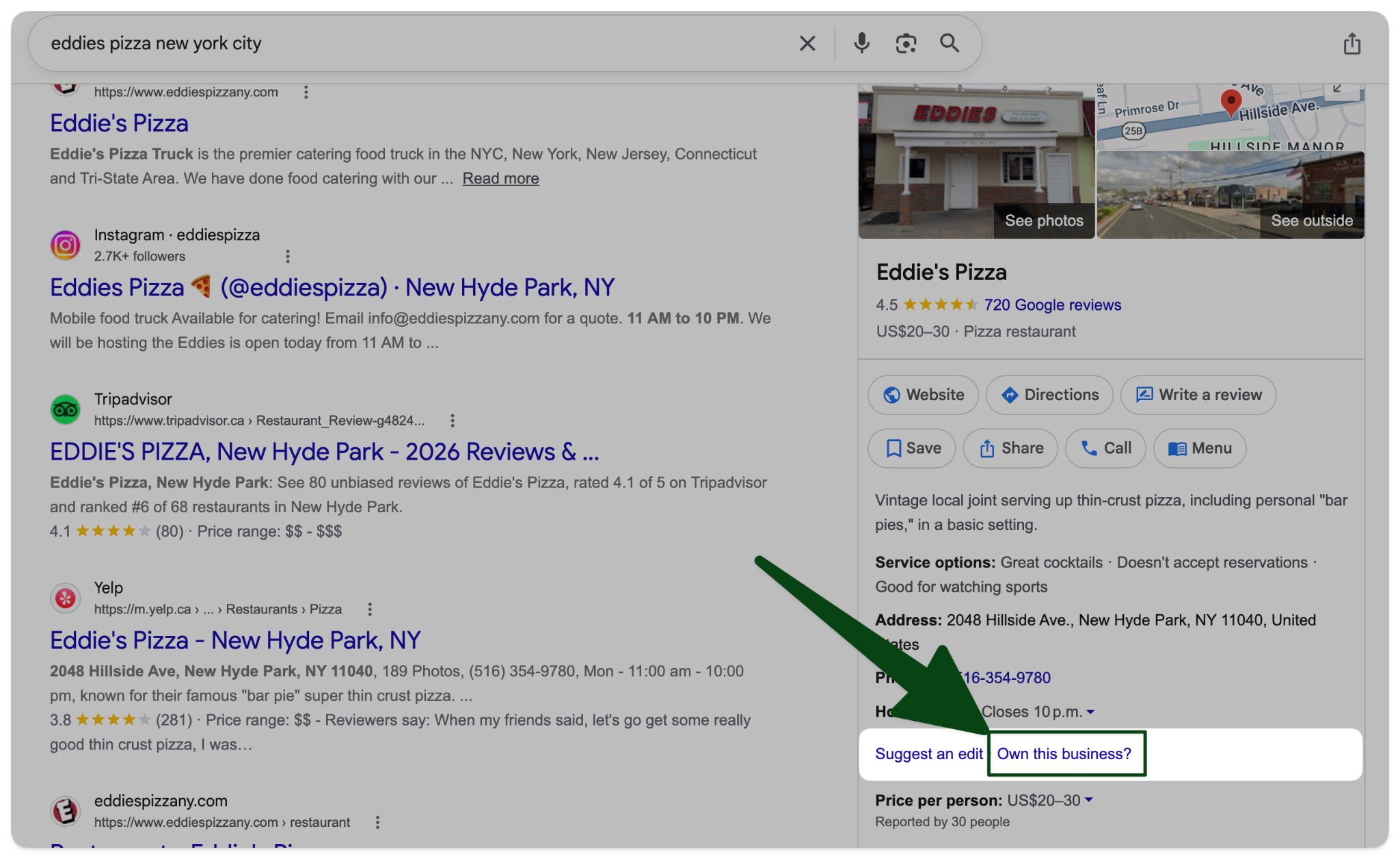
After searching for your business, you should see the panel open on the right-hand side.
You’ll see a button that says “Own this business?” Click it to start the verification process.
2. Get verified
There are seven ways to be verified. However, Google doesn't let you choose the verification method. Most often, they will ask you for a recorded video.
Their documentation on verifying your business states that the option you’re given depends “on your business type, public info, region, or business hours.” They also state that, “[i]n some cases, you may need to verify your business with more than one method.”
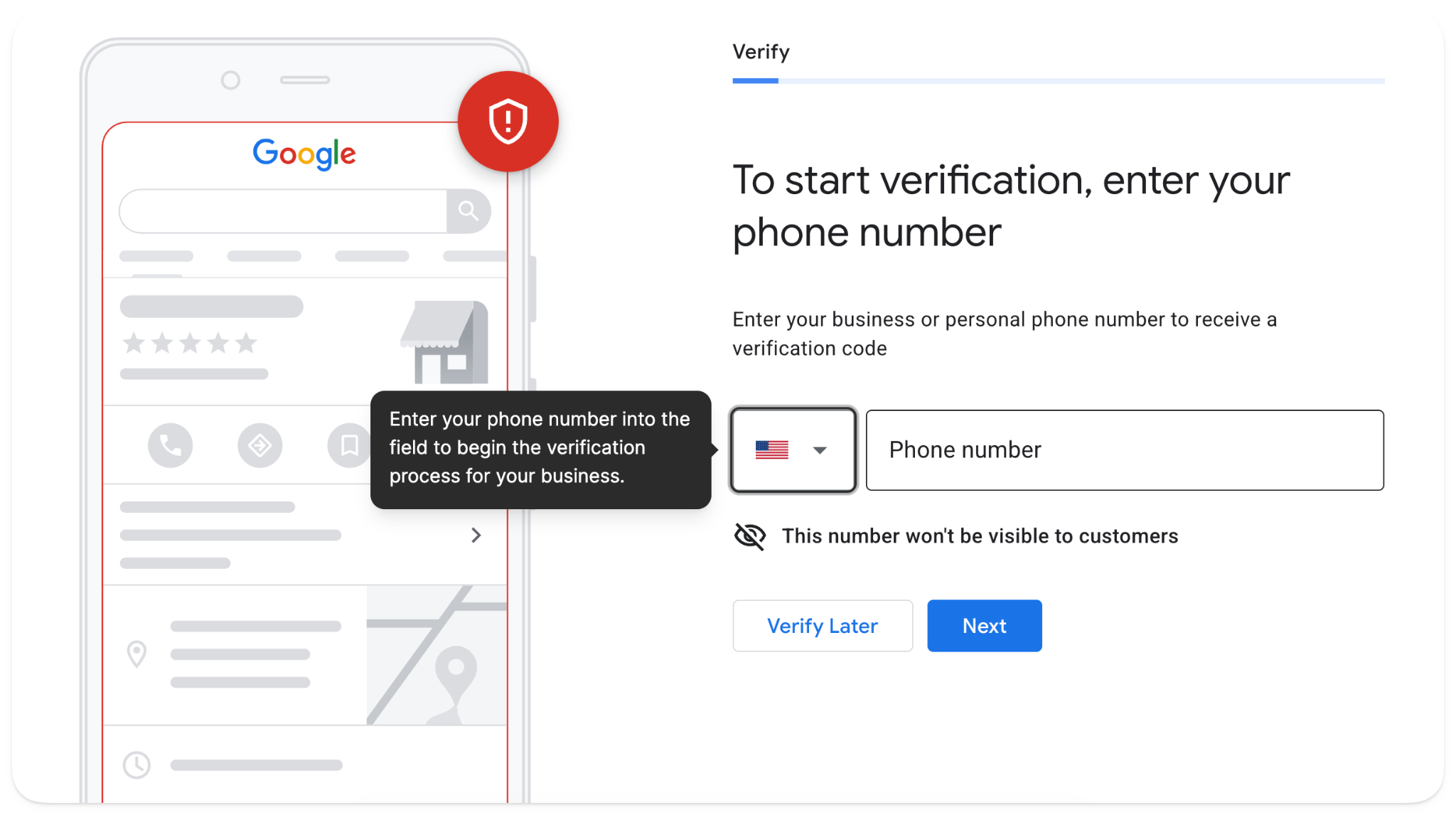
Here are all the ways you may need to verify your business:
- Video recording - You have to record an unedited video from your phone walking through your restaurant location, showing signage and other evidence that the business is real and yours. Prepare for this option because it's the most common verification method.
- Phone or SMS - This is straightforward and something you may already use for other services, like your bank. Google sends a verification code, and you punch it in the field on your screen.
- Email - If your email matches the domain of the website, they may send you verification instructions to that email address.
- Live video call - If the above methods don't work, you connect with a Google representative on a video call. You’ll have to walk around the restaurant and show the rep evidence that you own or manage it the same way you would in the recording method.
- Postcard/mail - In some cases, if you can't get a phone or email verification code, they will mail a five-digit verification code to the restaurant on your Business Profile. This is very tedious because it takes about 14 days. It's less common nowadays.
- Instant verification - This is unlikely, but sometimes Google can verify your business immediately. If you've already verified your website through Google Search Console, which is a tool that tracks how your website shows up in Google’s search results, you can be verified instantly. That’s because you would have had to verify your ownership of the website to set up Search Console, so they won't make you do it twice.
- Bulk verification - This is only relevant if you own 10 or more locations and you don't want to verify each one at a time.
3. Fill in the details Google asks for first
Once you've claimed your business, you can start adding the details Google needs.
There are a lot of details here, but it starts with your business name. Don't feel that you have to add anything official like ‘LLC’ at the end of your business name. It just needs to be the name that people would commonly call your restaurant.
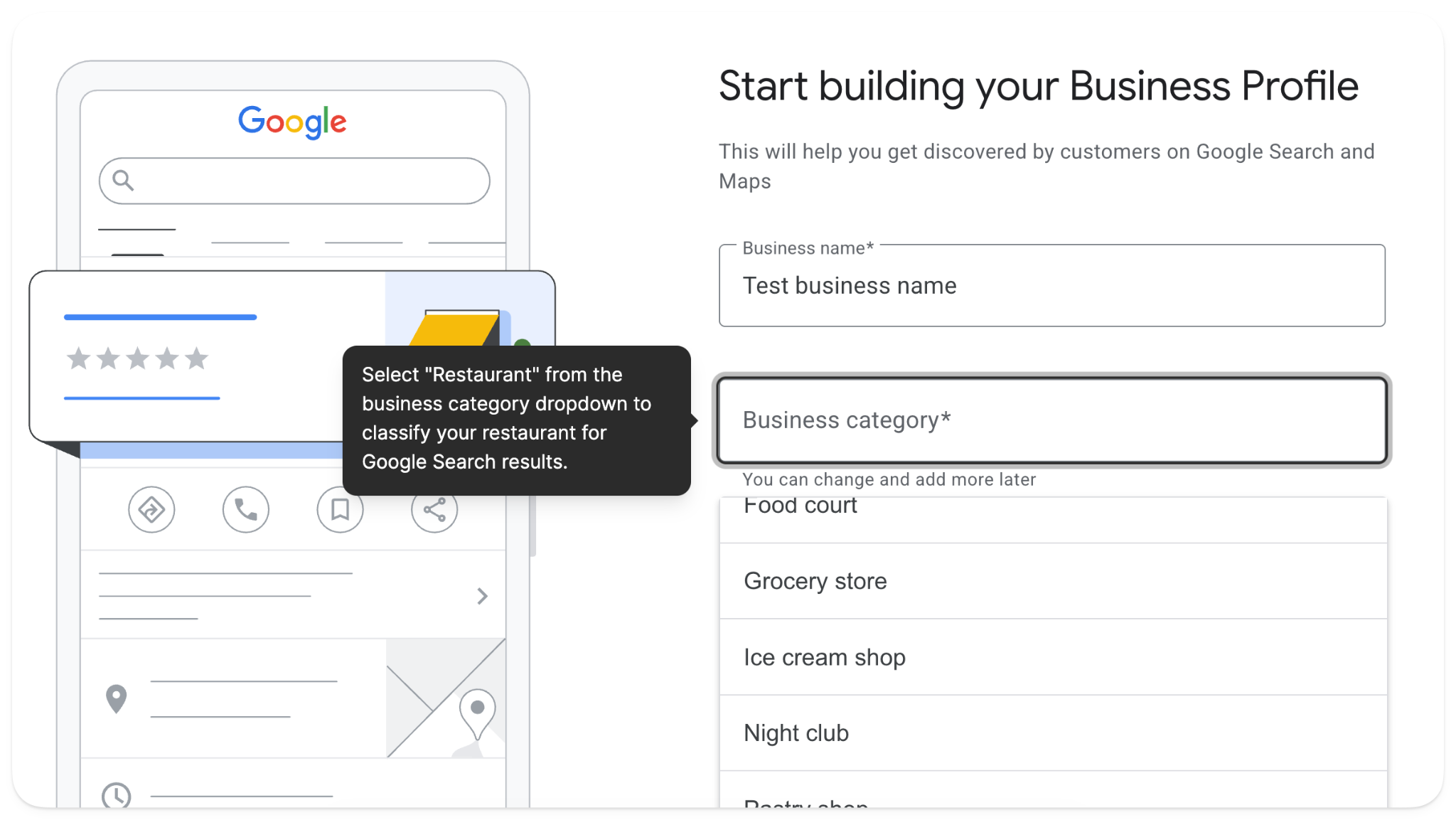
Next, select your category, which I assume will be ‘Restaurant’. There are many restaurant subcategories. It's very important to choose the one that best fits your restaurant. You can choose from a dozen options, like family restaurant, fast food restaurant, hamburger restaurant, etc.
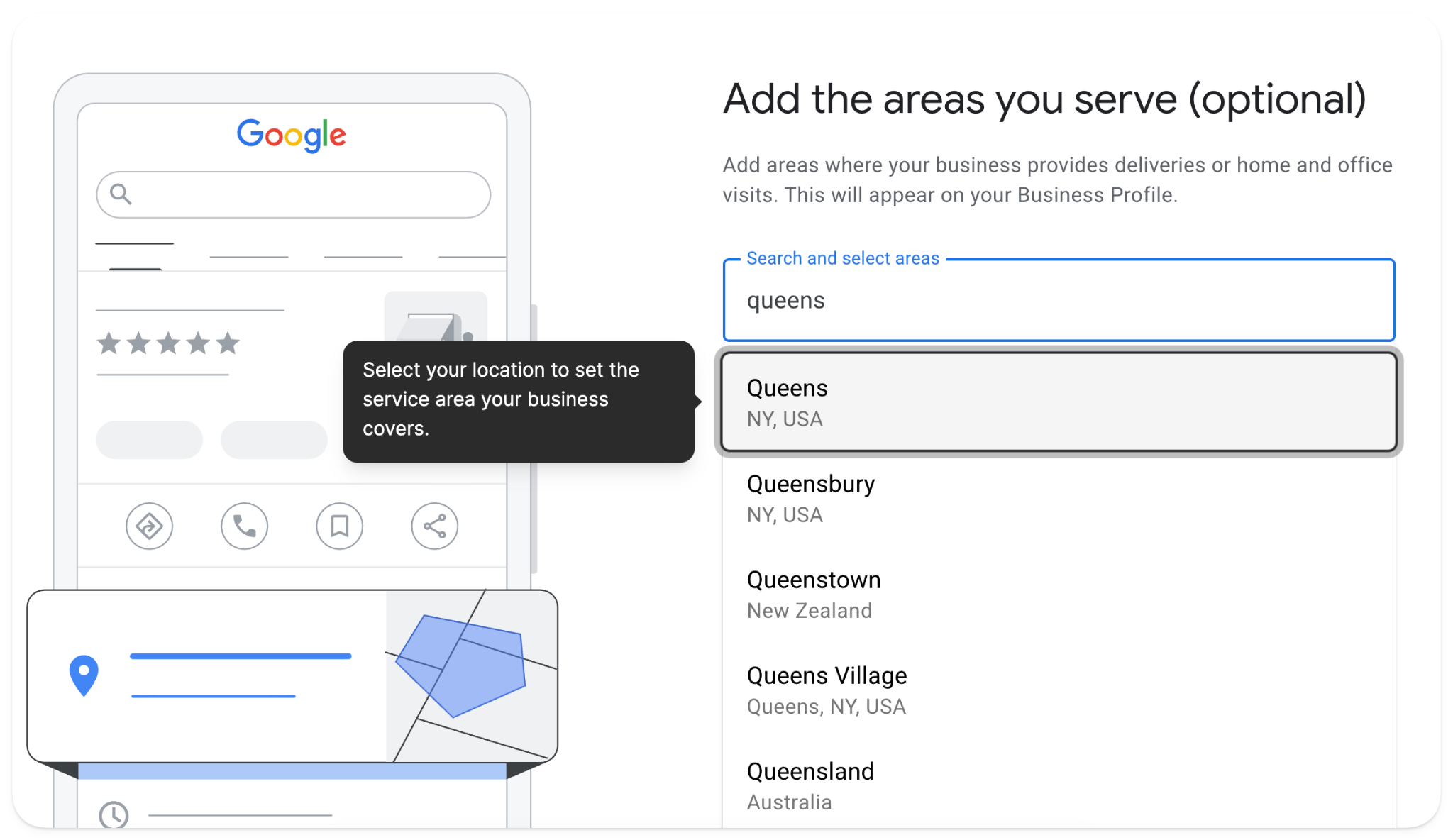
Another critical detail is the precise location and the areas your restaurant serves. This detail affects whether people see you when they search for a ‘restaurant near them.’
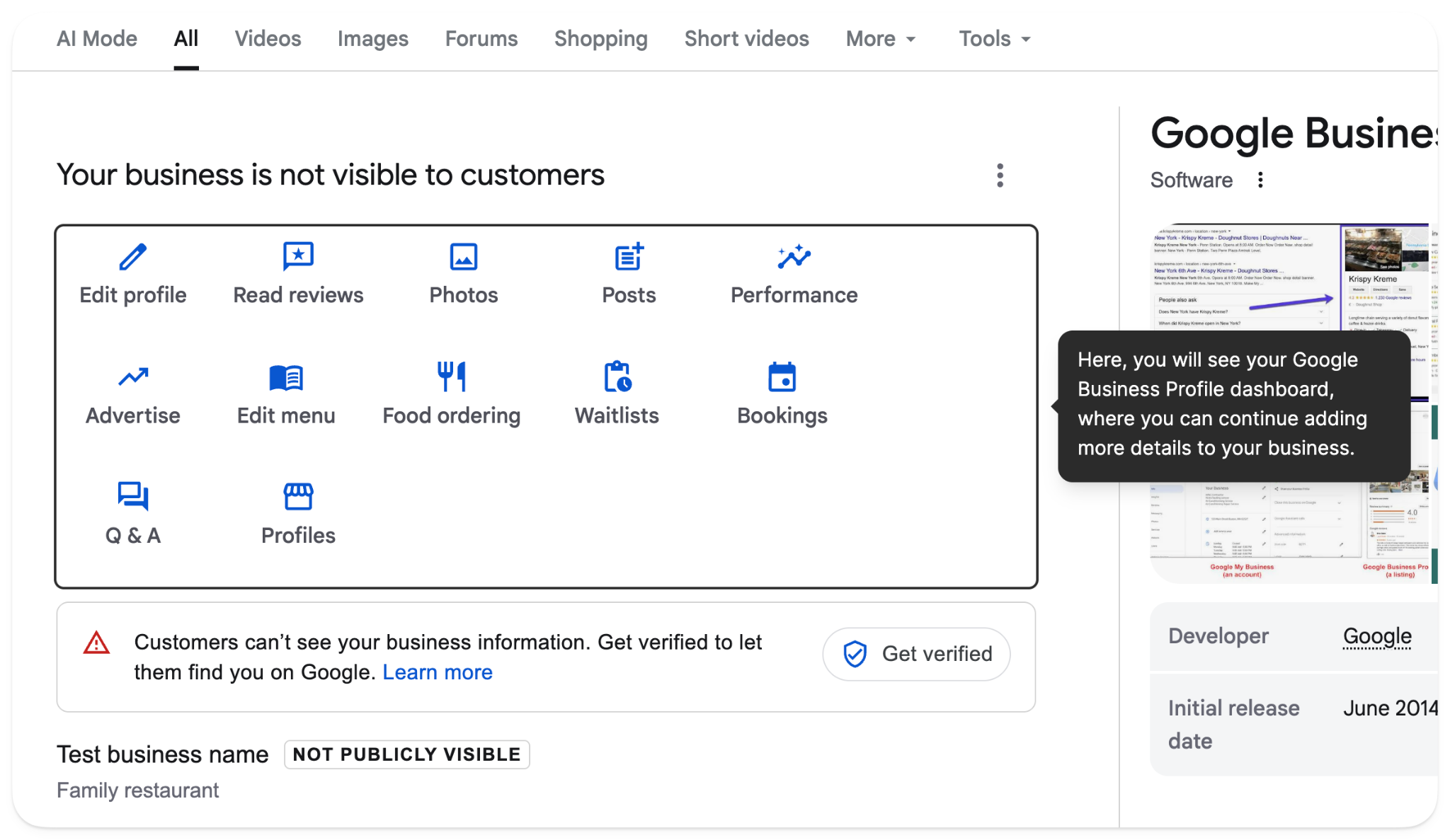
You'll need to add many other details after you set up the initial Business Profile. Afterward, you’ll see the complete dashboard when you search “My business” on Google.
Here, you’ll be able to click into all areas of your Google Business Profile. We’ll cover these in more detail below, but you’ll see areas you can fill out, like photos, reviews, analytics, advertising (optional), food ordering or bookings, and more.
You can also edit these details from the Business Profile Manager.
At this stage, you've set up your initial Google Business Profile, and you've either received verification or you're waiting on it.
Now we can get a little more scientific and unpack how to optimize your restaurant's Business Profile.
How to optimize your restaurant's Google Business Profile to grow online orders
Optimizing your restaurant's Google Business Profile means adding relevant details and selecting the right attributes. With a comprehensive, up-to-date Business Profile, you signal to Google that you’re an active business and should appear to people searching for a restaurant like yours.
When you set up your restaurant’s website on Owner, we automatically set up your Google listing and choose the best primary category and subcategory.
Below are the steps to optimize your Profile.
1. Pick the right primary category
Picking the right category for your business might seem like a trivial task, but it might be the most important thing you do when setting up your Business Profile.
For example, if you primarily cater events but select "Restaurant," that will severely hamper your ability to attract new customers specifically looking for a caterer.
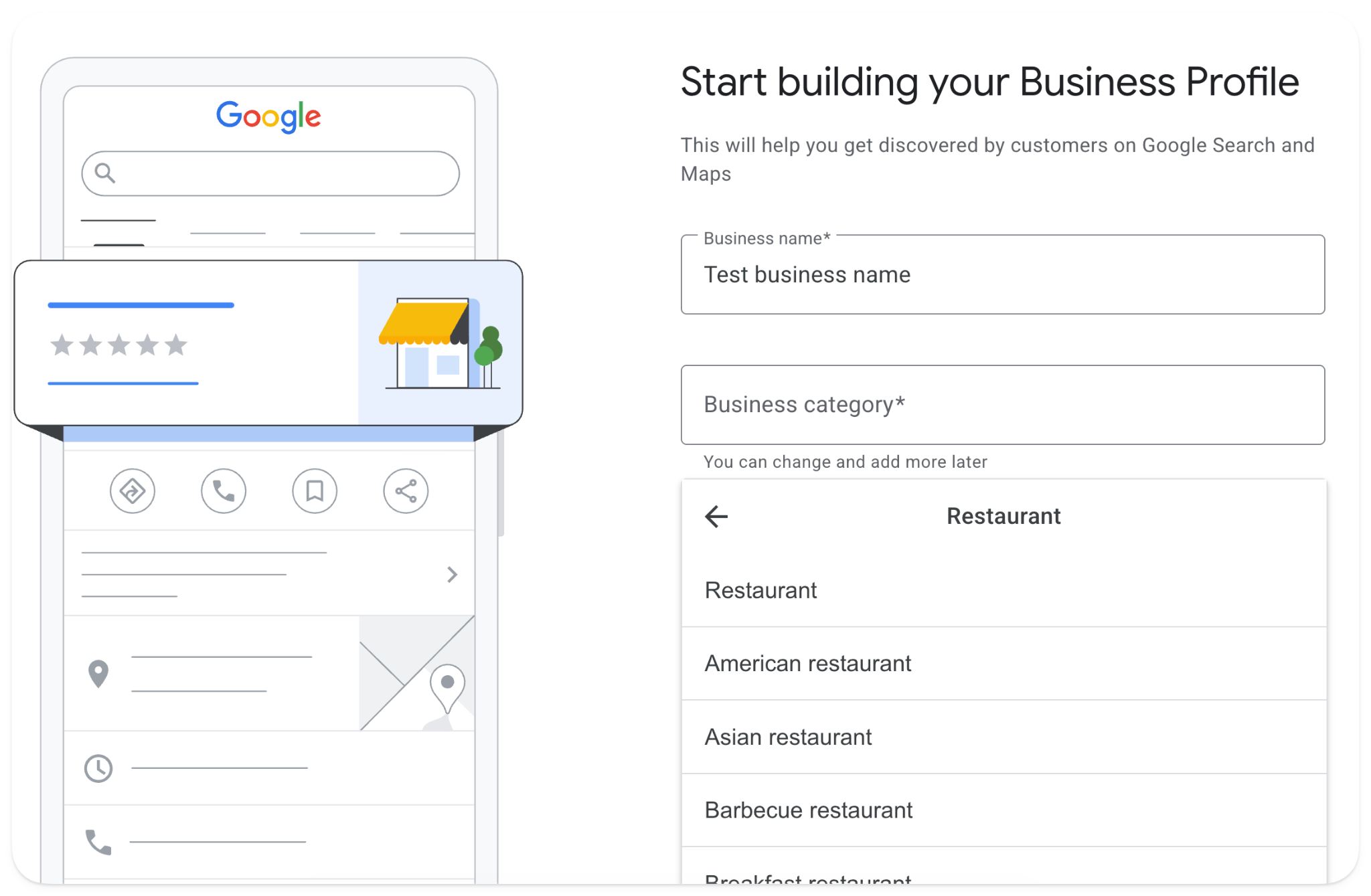
Within the ‘Restaurant’ primary category, there are almost two dozen other subcategories of restaurants. You can specify if you're a pizza restaurant, seafood restaurant, hamburger restaurant, buffet, barbecue, fast food, etc. There is likely a subcategory that best describes you. Choose the right one.
For example, you might consider yourself a fast food restaurant, but if a hamburger restaurant is more accurate, you should choose that.
2. Turn on every attribute that applies
Beyond the category your restaurant fits into, select other attributes if they apply.
Within the restaurant category, there are 99 attributes that Google can apply to your business. You can select many of these when editing your profile. Some examples include:
- Whether you’re a dine-in or takeout restaurant (or both)
- If you do delivery
- If your establishment has accessibility features, like a wheelchair ramp
- If there is adequate parking
Below is a sandbox of the different attributes you can select from when editing your attributes. Click each one under ‘More’ to see the options available.
Keep in mind that Google does populate some attributes from customer reviews.
These feed the filters potential customers use to search for restaurants; they also feed Google’s new “Ask Maps” feature, which is how people narrow a map search using AI.
So even if it looks like a lot, it’s still critical you spend the time accurately selecting the right ones.
3. Add your menu
When you’re looking at your Google Business Profile dashboard, you’ll see a button, ‘Edit menu’.
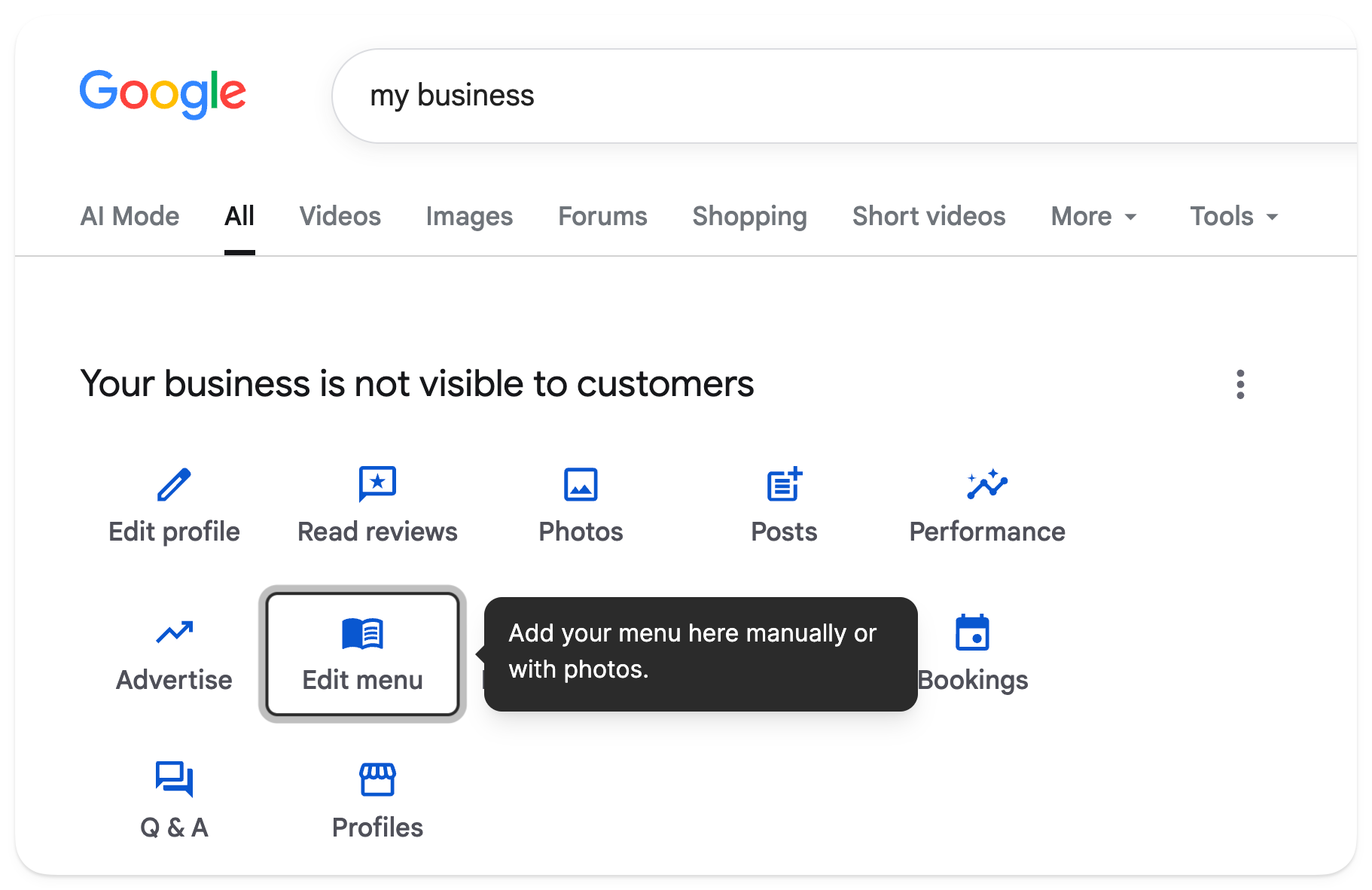
You can add your menu to your profile in two ways:
- Manually add each item
- Upload images of your menu
I recommend you do both.
Manually adding each item is tedious, so Google added a feature that creates your menu from a photo you upload using AI. However, this is an experimental feature, so you definitely need to double-check its work.
4. Add your ordering link
If you want to drive more online orders, add a link to your online ordering system to your Google Business Profile. You’ll find the option to add a link within your Profile’s dashboard.
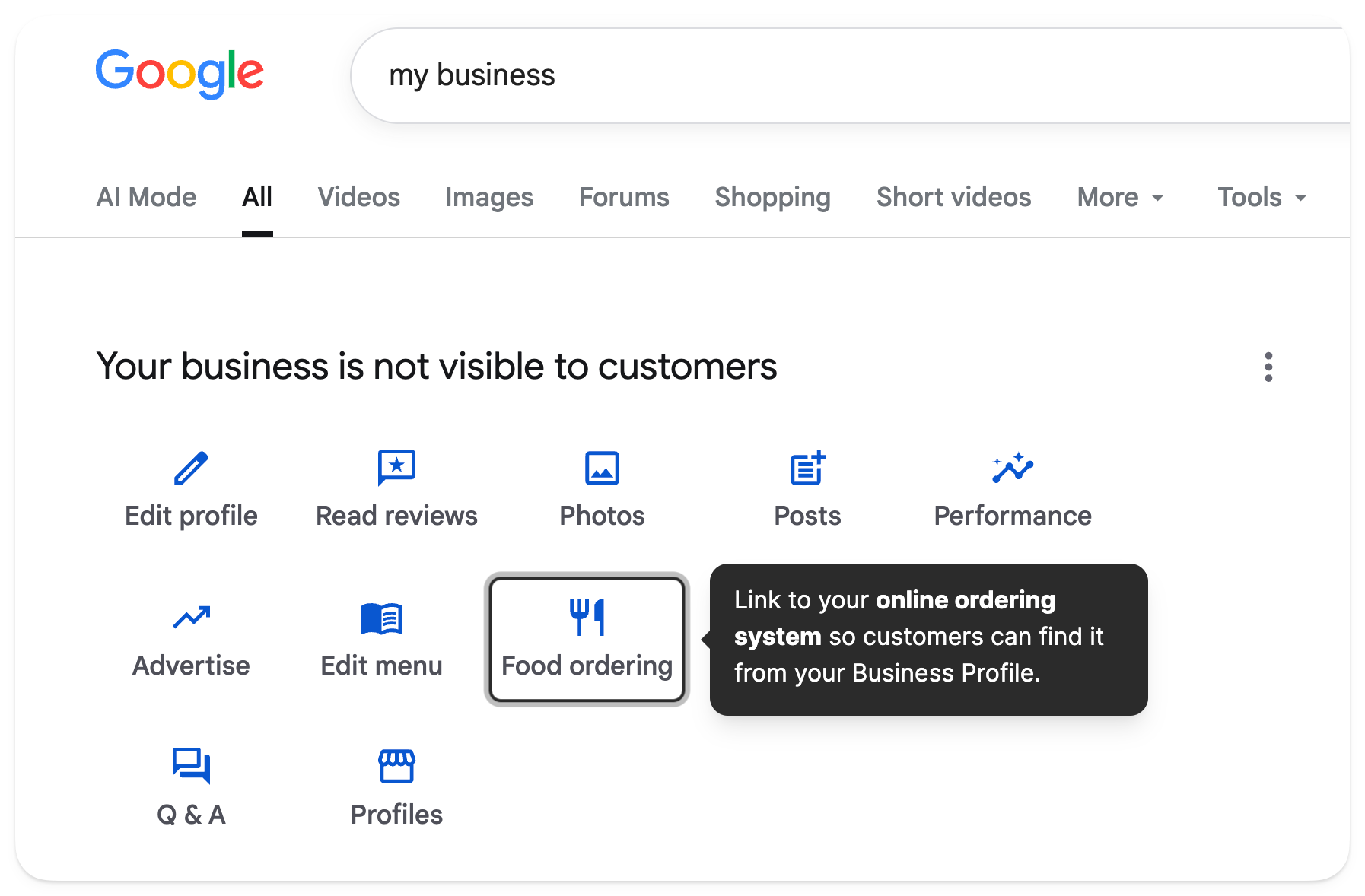
When you add the link, Google will add a big blue button for customers to click to choose pickup or delivery. When you’ve built your restaurant website on Owner, you’ll have a direct online ordering link that drives customers into your online ordering system, designed to convert better with smoother ordering, popular-item prompts, and smart upsells that help more guests finish orders and increase cart size.
Having that button on your Business Profile helps turn Google searches into repeat direct revenue.
5. Get the hours right, including holidays
I don’t know about you, but the first thing I see when I open a restaurant’s Google Business Profile is whether they’re open right now. And that’s because Google will specify in colored text if they’re “Open,” “Opening soon,” “Closed now,” or “Closing soon.”
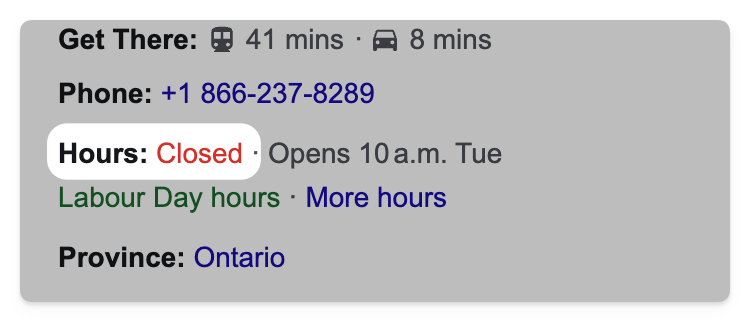
If you neglect to add your daily operating hours, you’re leaving out basic details that might stop someone from coming to your restaurant.
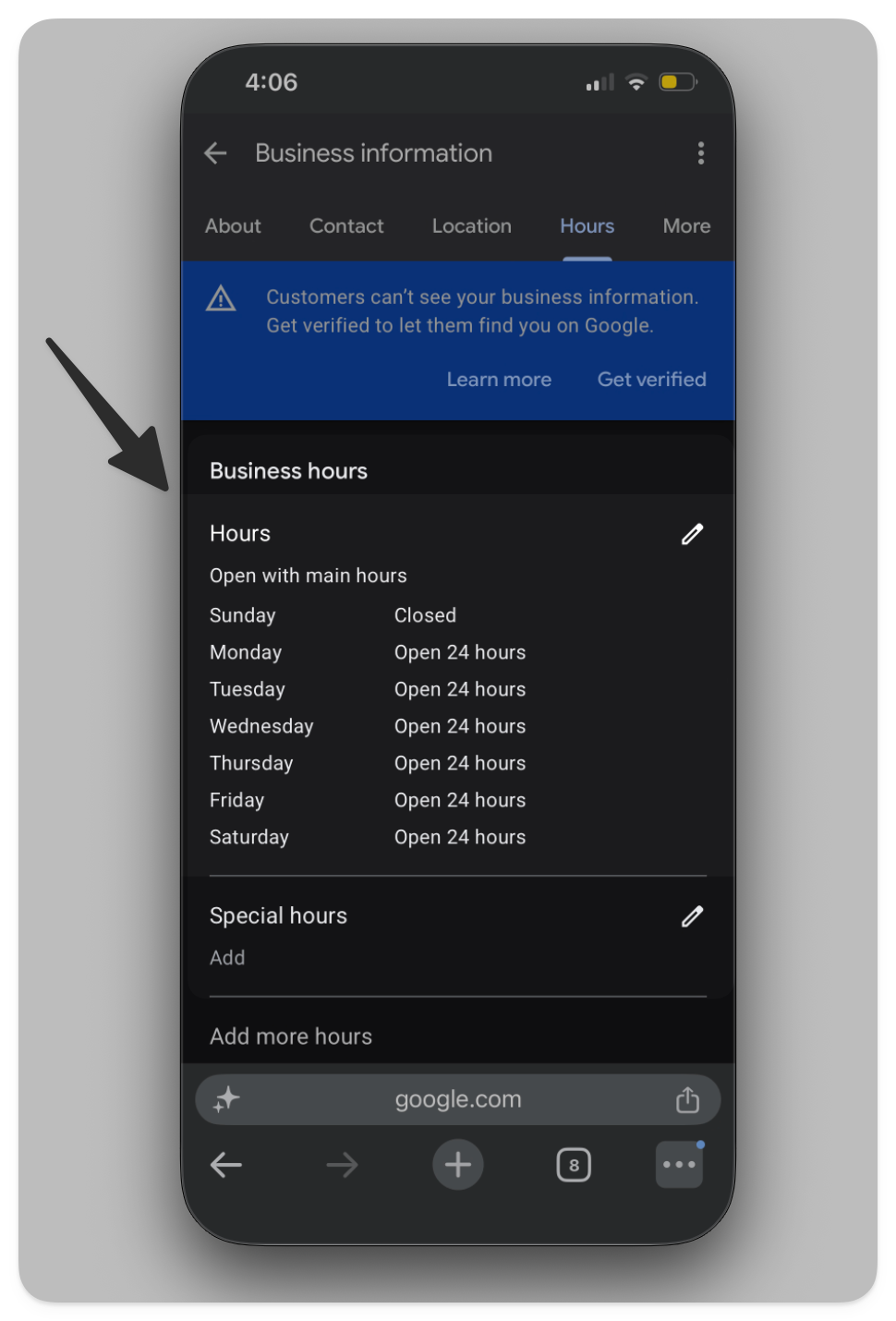
Likewise, don’t forget to add holiday hours. I can’t tell you how many times it’s been a holiday and I’ve gone to a restaurant that says “Open” on their Google Business Profile only to learn they’re closed that day.
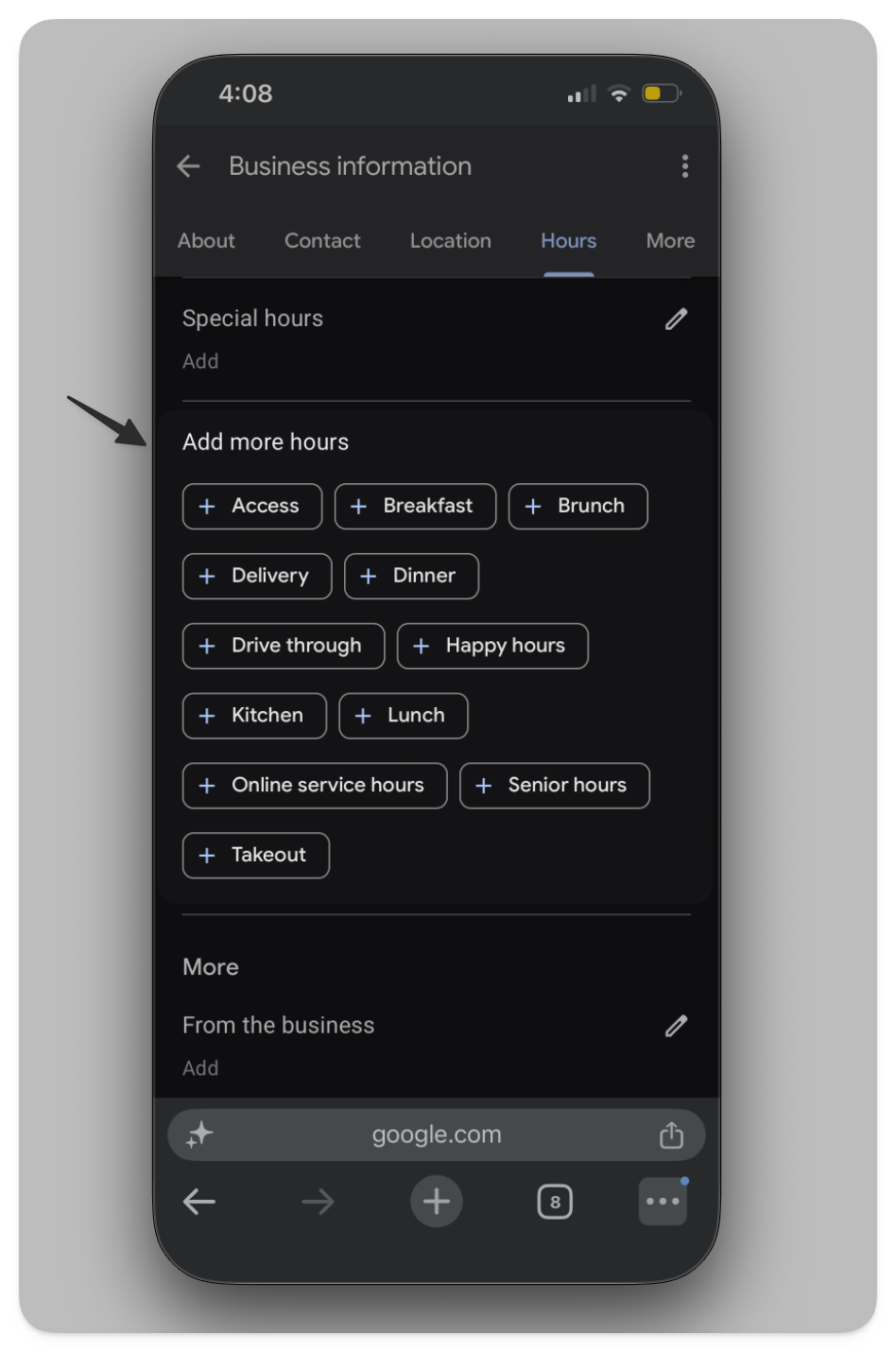
You can specify these holiday hours under the menu “Special hours” after clicking “Edit menu” from your Business Profile dashboard. It takes only a moment, and you can do it from your phone.
You can also add hours for things like 'takeout' or 'happy hour’ under “Add more hours.”
6. Photos
I’d argue your photos are the most important part of your Google Business Profile. Potential patrons will assess if your restaurant is worth it almost immediately when they see your photos.
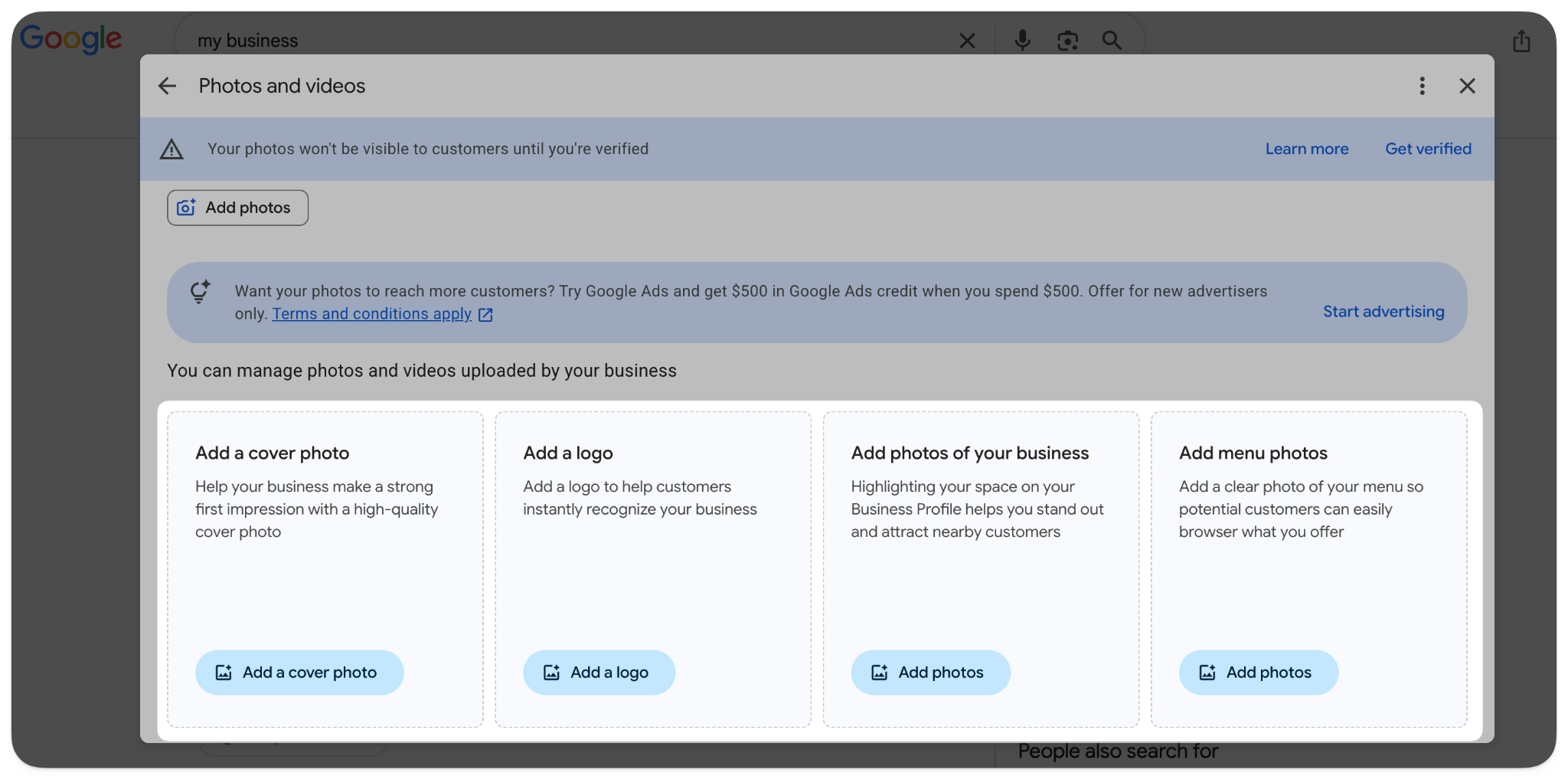
Your Google Business Profile should include pictures of the following:
- A cover photo that will be your first impression, usually your storefront so that people will recognize it in person
- Your logo or signage
- Your dining room or patio to show the vibe of your restaurant
- A close-up of your most popular dishes
- Your menu
- Photos of your team
- (Optional) A short 5- to 7-second video of your dining space or popular dish (max 30 seconds).
Your Business Profile will also show images from customer reviews. So you don’t have full control over which images show up when a user visits your profile.
Google’s guidelines for pictures and videos are:
- Upload JPG or PNG file formats for pictures.
- Keep the file size between 10 KB and 5 MB.
- Have an image resolution of about 720 pixels tall and/or 720 pixels wide (minimum is 250 px tall by 250 px wide).
- Use a clear, in-focus photo with good lighting.
- Not be heavily edited or use AI (Google stresses that it should represent reality).
The media you add to your Google Business Profile will be what shows up on Google Maps and Google Search when people are skimming their options. As such, I can’t stress how important it is to have engaging, high-quality images that grab their attention.
7. Write a great description
Your restaurant’s description on your Google Business Profile should clearly and concisely describe your restaurant. It shouldn’t be a long history, but it should state in the first sentence what kind of restaurant you are, whether Italian, Japanese, etc.
Then, include the unique identifiers, like how long you’ve been in business or the popular dish you’re known for.
Update your restaurant’s Google Business Profile description by clicking ‘Edit profile’ in your Business Profile dashboard.
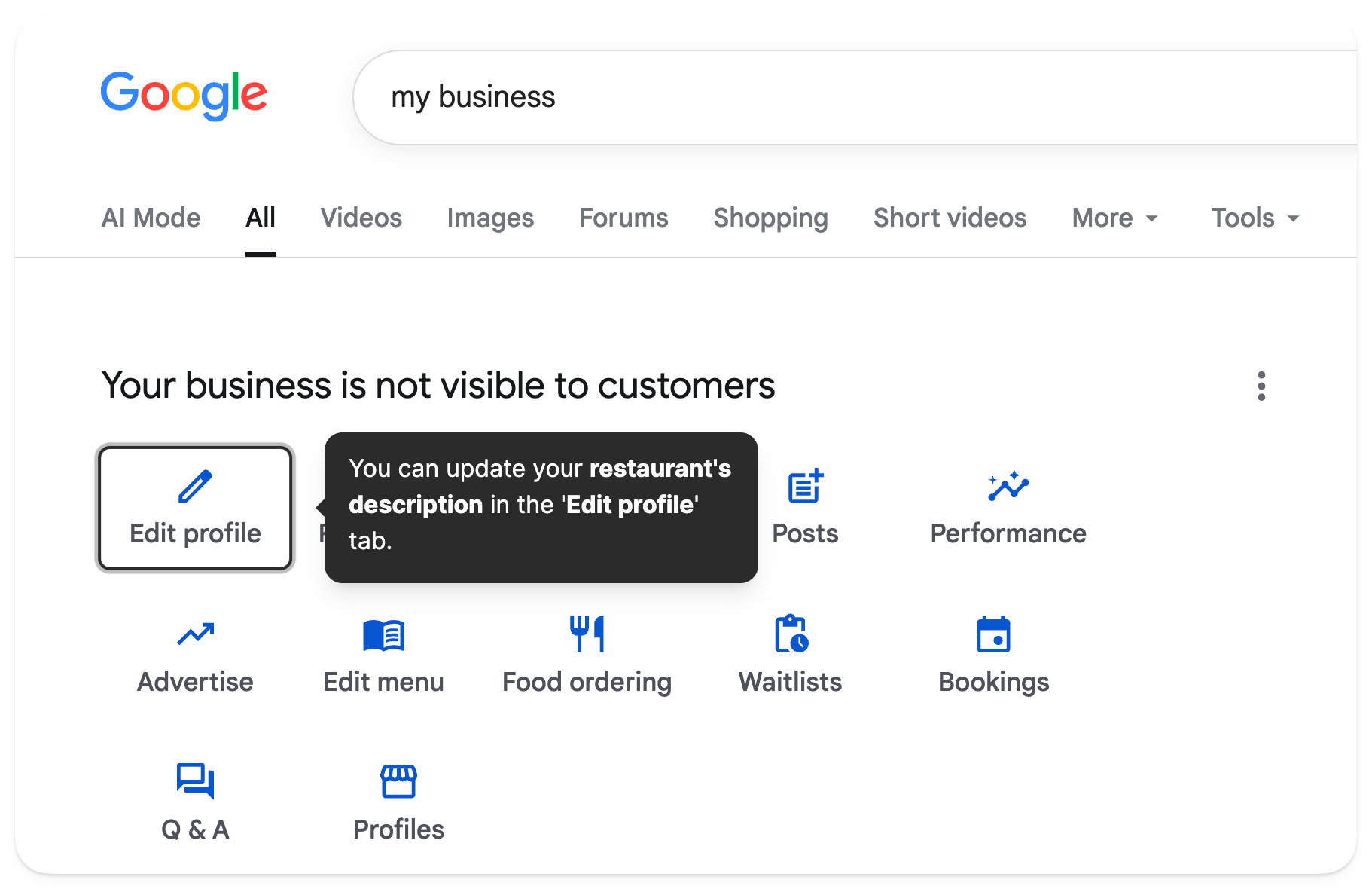
Note that you’re limited to 750 characters, which is between 110 and 190 words, and you can’t include any links.
If you’re struggling to come up with what to write, Google does offer a helpful AI-powered business description generator.
8. Use Posts for offers and events
If you want to share any updates, offers, or special announcements with your customer base, you can do so from your Google Business Profile within the ‘Posts’ section.
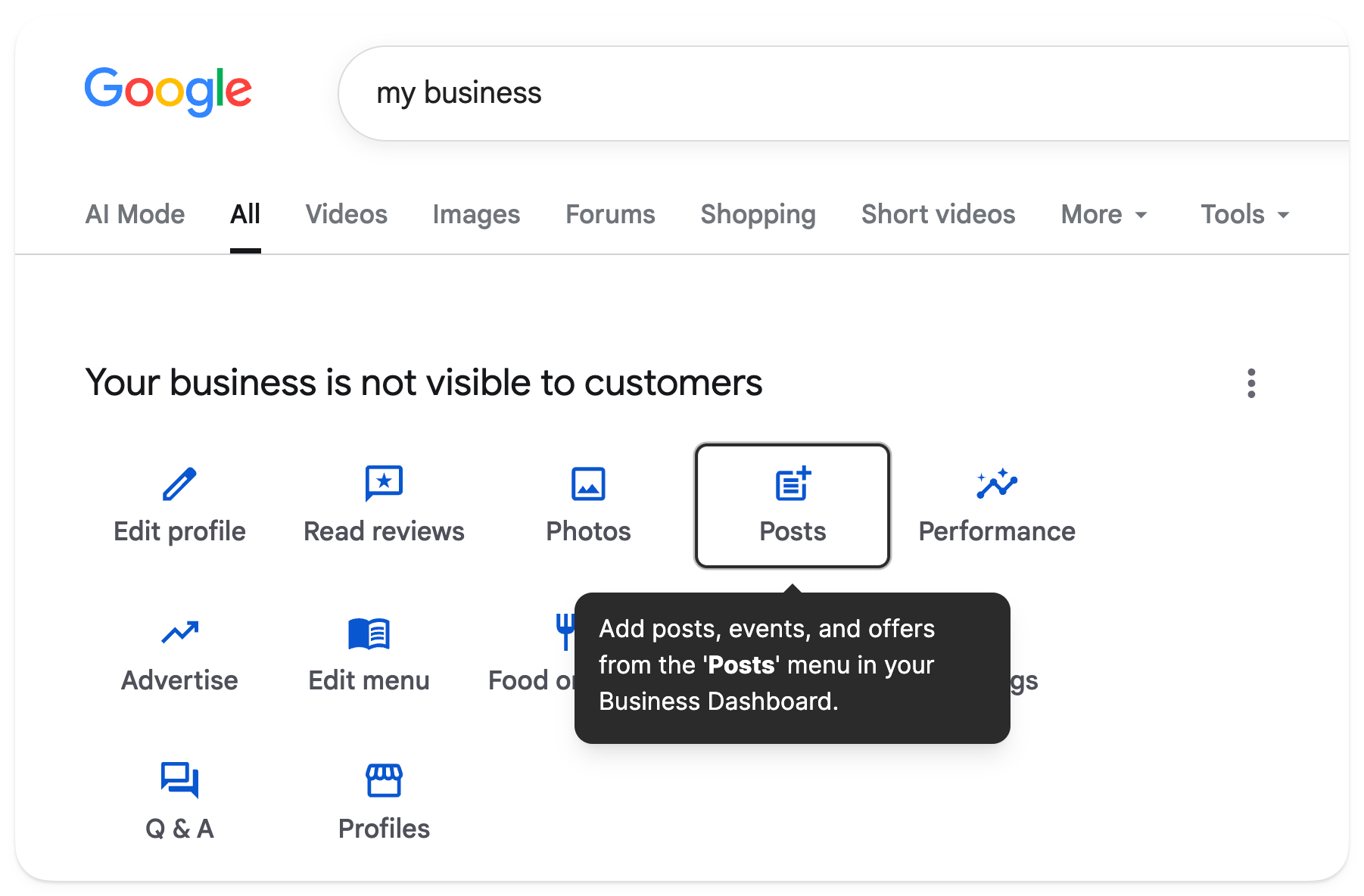
When customers see your updates, it helps them decide whether to visit your restaurant. This helps build trust and shows you’re active.
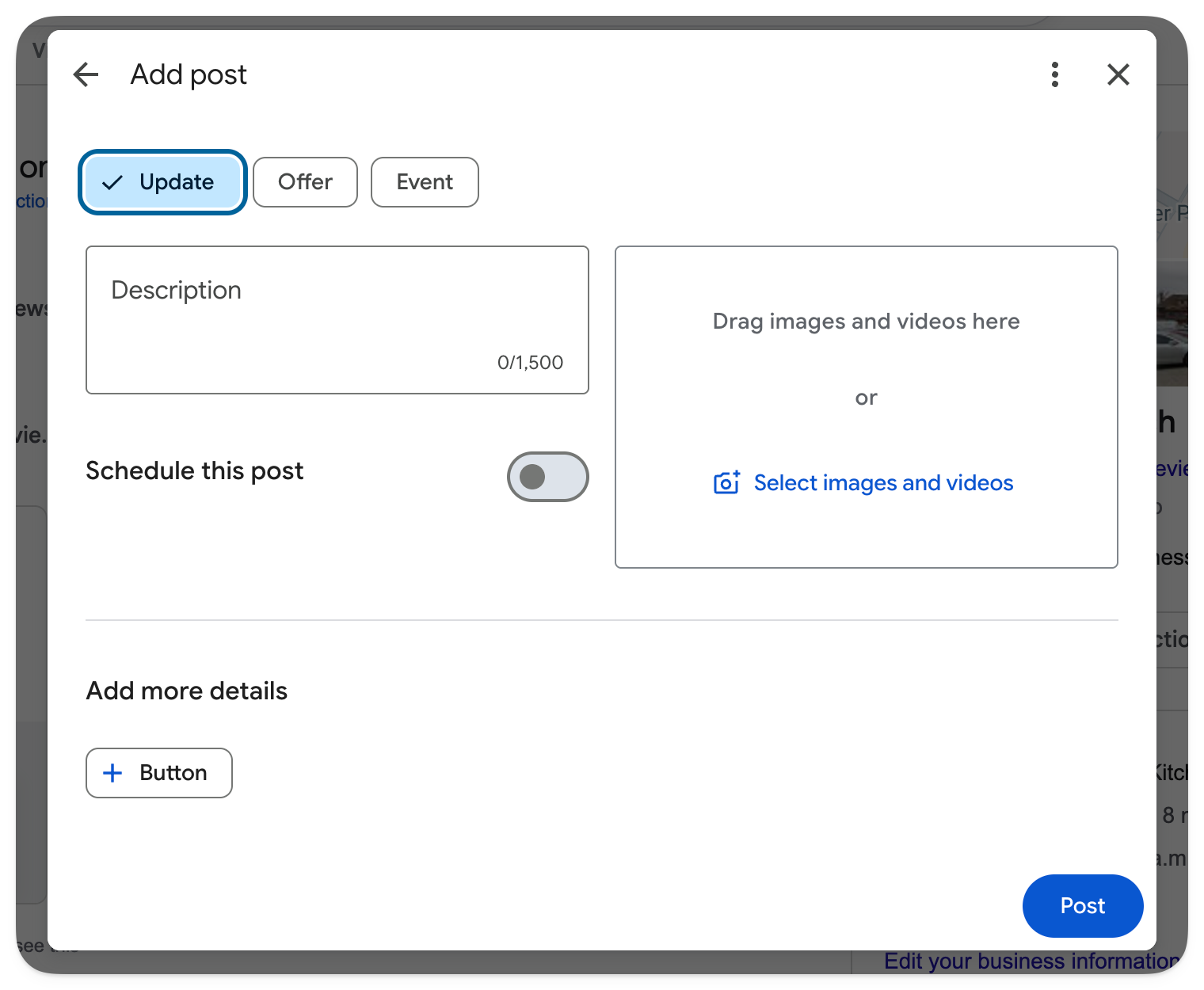
For example, one of my favorite local restaurants always posts when they're going away for a long weekend and closing. Of course, they also update their holiday hours, but that update feels more personal.
If there's ever a special event or offer, this is the place to share it on your Google Business Profile.
Google’s Q&A section has been replaced with AI
As of late 2025, Google removed what used to be the Q&A section of the Google Business Profile. It’s now the AI “Know before you go” section. Right now, this AI section is only available on Google Maps, underneath your restaurant's photos.
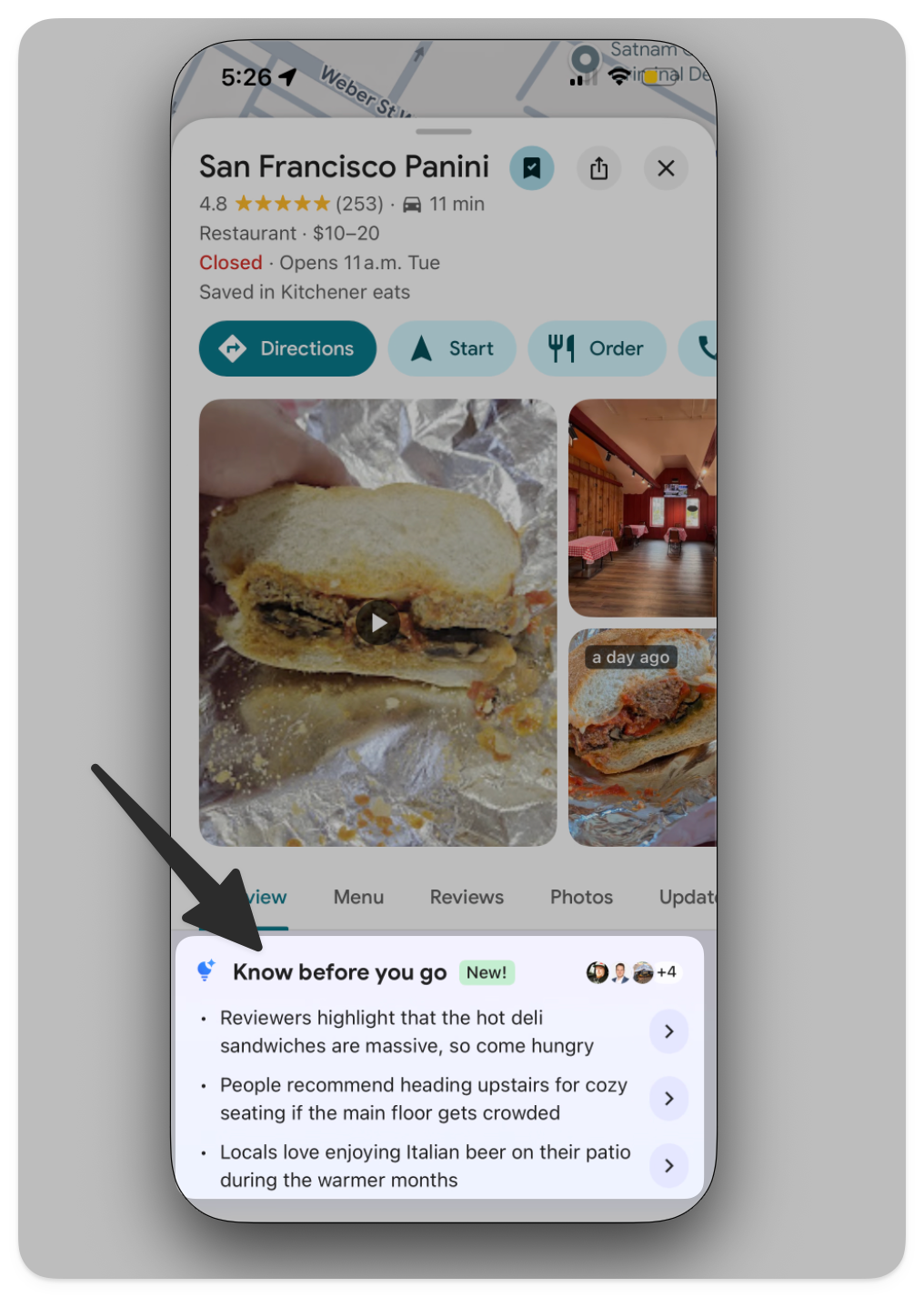
This feature seeds common questions based on reviews of your restaurant. It allows potential customers to ask about your business and helps them decide if they should choose you.
Clicking a question routes users to the “Ask Maps” feature, where they can chat with Google’s Gemini, its AI chatbot.
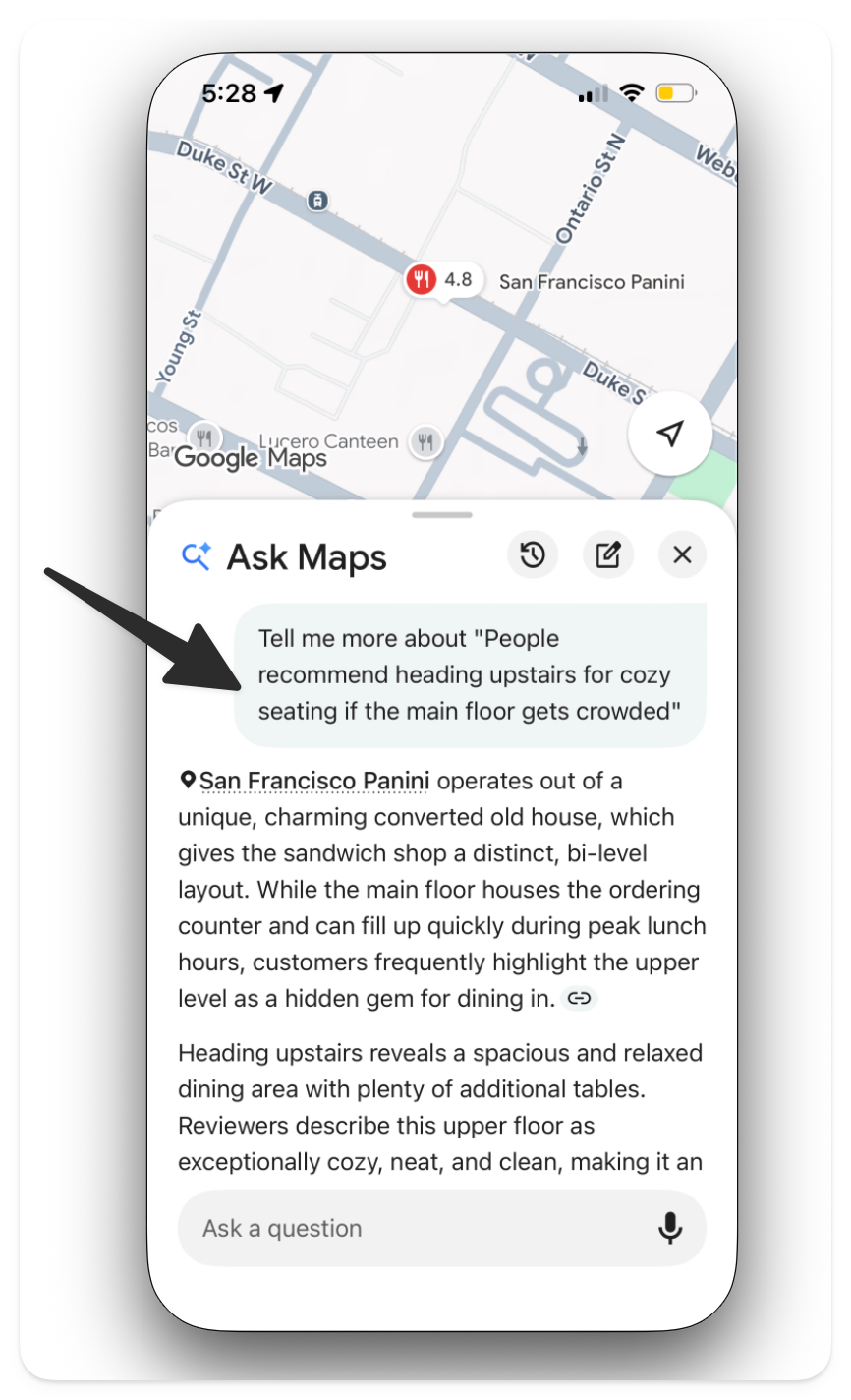
It’s difficult to influence what these questions will be because it’s seeded from your reviews. However, in the next section we’re going to unpack reviews more deeply to explain how you can leverage them, not only to build trust with your customers, but to inform Google’s AI, which will use your reviews and your responses in its answers.
Google Reviews: the part that moves rankings most
If you can recall Google's formula for deciding who shows up in the Map Pack in the Google search results or on the Map when someone searches for ‘restaurants near’ them, there are three parts to it.
- Relevance
- Distance
- Prominence
Reviews influence the prominence factor. There are three parts to your reviews that Google looks at:
- The number of reviews
- The rating of the reviews
- The velocity of the reviews (how often customers review you)
Google doesn’t release how its review algorithm works, but beyond the reviews themselves, these are the factors it weighs.
So how can you leverage reviews to grow your online sales? You need a system to automatically collect reviews from customers right at the moment they’re happiest.
Owner’s Reviews Engine will ask customers for feedback after they place an order, giving them the option to select a thumbs up or down. If they select a thumbs up, we send them to your restaurant's Google review page. If it’s a thumbs down, they can fill out a private form, so you can see it first.
Karv Greek Kouzina in Windham, New Hampshire, runs this on autopilot, and they're now pulling 5+ new Google reviews a day, 95% of them five stars. That's the review velocity Google wants, without anyone on staff chasing it.
You may ask, “Does it really matter that I continually collect reviews? What if I already have a five-star rating?”
Let's look at an example of two hypothetical restaurants.
Restaurant A has 4.9 stars, 1,200 reviews, but only two reviews in the last six months. What’s up with that? Maybe they've been around for a long time, but have really gone downhill. How is someone to trust a review from seven years ago?
Now let's look at Restaurant B. They have 4.5 stars, 750 reviews, and 40 new reviews this month. If a review from a week ago says that it's their “new favorite spot,” you may be more inclined to check out this up-and-coming restaurant because there's clearly a lot of buzz around it.
So reviews matter not only for Google's algorithm but also for how customers perceive your business based on your GBP.
Can you delete negative Google Reviews?
Now what do you do if you get a review you're unhappy with?
If there’s a review you want to get rid of on your profile, whether it’s dishonest, fake, or for the wrong business, you can report it directly by clicking on the three dots beside the review.
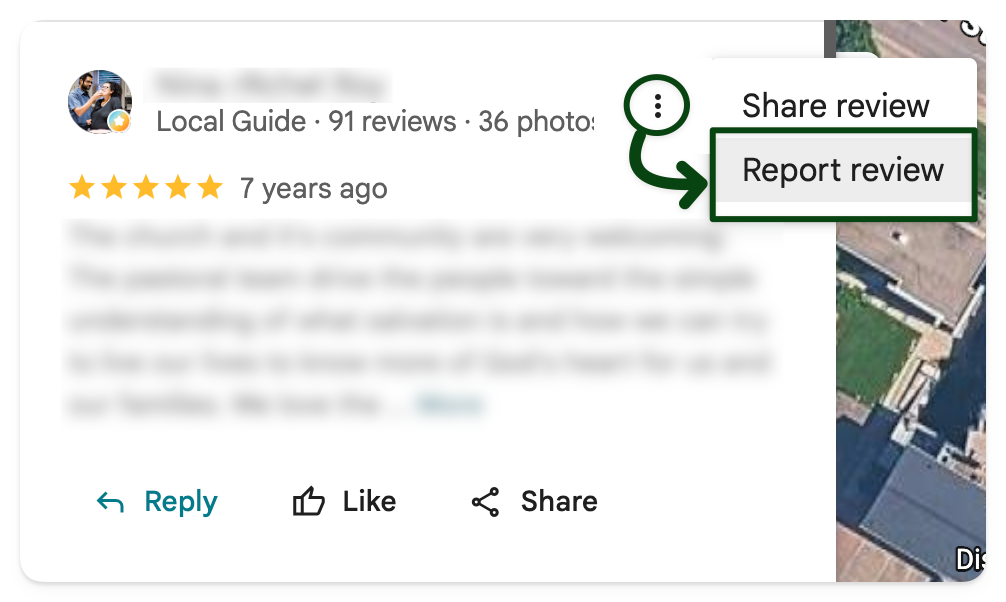
Google will review your report and decide whether or not to remove it. Google explains in its documentation on inappropriate reviews that you can't simply remove a review just because you don't like it or it's a one-star review. You need evidence that it's not legitimate.
Legitimate reasons for removing a review include:
- Off-topic
- Spam
- Conflict of interest
- Profanity
- Harmful
- Bullying or harassment
- Discrimination or hate speech
- Personal information
- Not helpful
If there's a review that could be described as any of these, you have grounds to report it.
How to measure Google Business Profile impact
You can assess the performance of your Google Business Profile from the ‘Performance’ menu in your profile dashboard.
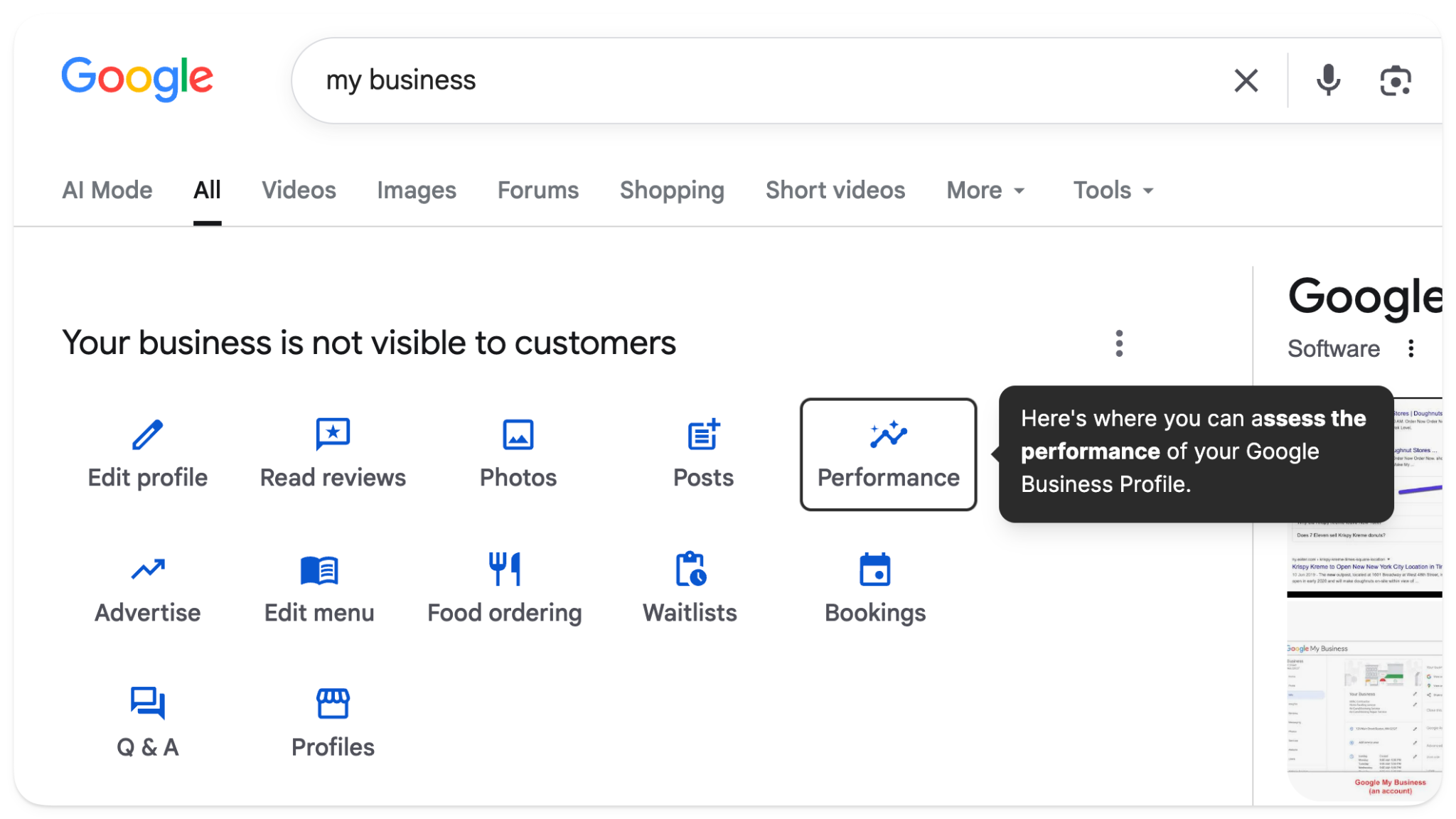
The performance dashboard will tell you many things, including:
- How many interactions people have had with your Business Profile
- How many phone calls you've received from your Business Profile
- The number of bookings you've received from your Business Profile
- How people discovered your Business Profile, such as the search terms they used on Google Search or Maps and if they were on their phone or computer
- How many people asked for directions
- How many people clicked to your website from your Business Profile
Here’s a quick walkthrough of what information the performance menu shows you.
With the performance report, you can track benchmarks over time to see whether the work you're investing in your Google Business Profile is paying off in increased interactions, calls, or bookings.
It also gives you invaluable information about the searches that bring people to your restaurant online and whether they are primarily finding you through Maps or Google search results.
Common Google Business Profile problems and how to fix them
There are several common issues that cause restaurant owners headaches when managing their Google Business Profiles.
Perhaps you’ve run into these:
- Having duplicate listings for the same restaurant.
- Correcting misinformation or inaccurate details about your business.
- Having your profile suspended for whatever reason and needing to get it reinstated.
- Being confused about how to give someone else access to your Business Profile.
Let’s quickly explain how to fix each of these.
How to fix a duplicate listing and correct other misinformation
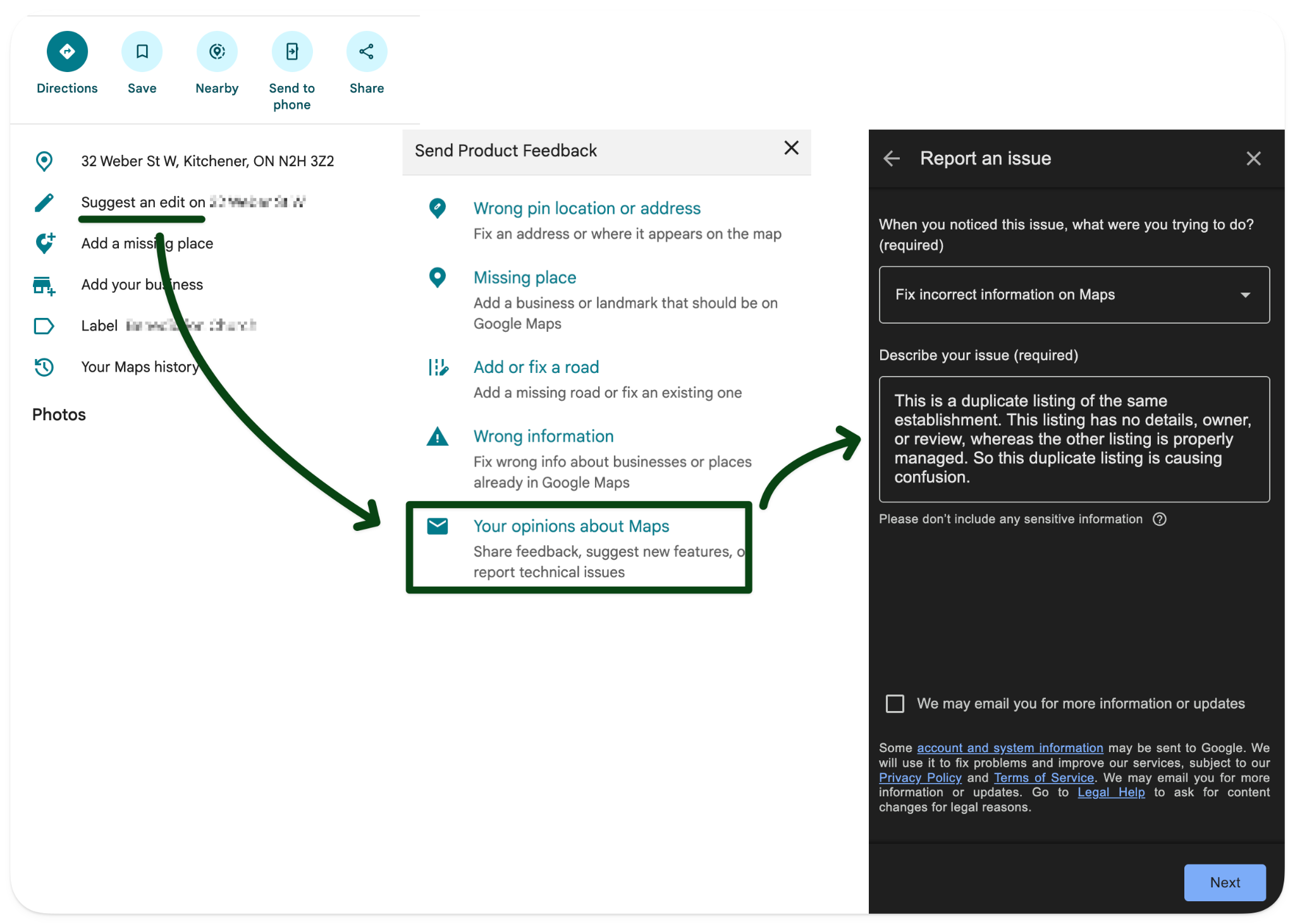
If you find a duplicate listing for your restaurant, you can report it by clicking “Suggest an edit” in Google Maps.
From there, you have several options to choose from, but there’s no explicit option to appeal a duplicate listing. Instead, you have to click “Your opinions about Maps” > select “Report an issue” > select “Fix incorrect information on Maps” from the drop-down and type in your reasoning in “Describe your issue.”
From here, you can also report other incorrect information using the product feedback menu.
How to appeal to Google to reinstate a suspended profile
If your Google Business Profile has been suspended and you need to get it back, you’ll have to submit an appeal through Google’s appeal portal.
The portal process is straightforward, but make sure you have evidence that the business is yours. Gather your business registration, business license, tax documentation, or utility bills.
How to give someone else access to your Google Business Profile
You can add someone to your Google Business Profile as an owner or a manager. A manager can only make changes, whereas an owner can manage all settings.
To add someone, search Google for “My business” after setting up your Google Business Profile. From there, you'll see three dots in the top right corner of the settings menu for your Business Profile. From there, select “People and access” and add the emails of the people you want to invite.
Here’s a quick walkthrough:
A Google Business Profile is essential for growing your restaurant’s online orders
Your Google Business Profile is non-negotiable for your restaurant today. If you don't have one, you are leaving so much opportunity on the table. It's not enough to just have a website and an online ordering system.
You have to be active where your customers are. And whether we like it or not, most people will find restaurants today by searching on Google or navigating their Maps.
Owner has helped thousands of businesses grow their online orders by providing a restaurant SEO system that’s designed to get you as much traffic as possible from neighborhoods near you.
If you’re ready to grow your online sales, get a free demo.
Google Business Profiles for Restaurants FAQs
How do I optimize my Google Business Profile for local searches?
Make sure your name, address, and phone number are accurate and consistent across Google and all other online directories. Add high-quality photos, keep your hours up to date, respond to reviews, and use relevant keywords in your business description. These steps help Google understand your restaurant and show it to local diners.
Is a Google Business Profile free for restaurants?
A Google Business Profile is completely free to set up. This will help you get listed on the world's largest search engine and Maps app, where your customers search for restaurants.
How do I get my restaurant to show up on Google Maps?
To get your restaurant to show up in Google Maps, you first have to create a Google Business Profile. On your profile, you can include your hours of operation, photos of your restaurant and menu, and collect and manage reviews.
How long does Google Business Profile verification take?
Your Google Business Profile verification takes different amounts of time depending on the method you use to verify your business. Unfortunately, you don't get to choose which method Google requests. If you've already set up your website through Google Search Console, you may qualify for instant verification, because you would have previously verified your website when setting up Search Console.
If you verify by phone or email, it may take only a few minutes. Most commonly, though, restaurant owners have to submit video verification, which can take three to five days. Lastly, you can also verify by mail, which takes five to fourteen days, plus a few days after you enter the verification code.
How often should I post to my Google Business Profile?
Posting on your Google Business Profile is a great way to connect with customers and keep them updated. Your posts surface in their own Updates section on the profile, so they’re highly visible when people search for your restaurant on Google. You can share menu changes or operating hours, or promote upcoming events. You don't have to do one every week, but once a month is a reasonable frequency to keep your restaurant top of mind for customers.
Can I remove a fake Google review?
You can remove a fake review by reporting it to Google. You'll see three dots beside the review. Clicking it shows the options, one of which is “Report review.” Then explain why you are reporting it, and Google will review your evidence and decide whether to remove it. Most often, if you have a legitimate reason the review is fake, spam, or inappropriate, Google will take it down quickly.
How many photos should a restaurant have on its Google Business Profile?
10 to 15 photos on your Google Profile are enough to give people a good sense of your menu and the atmosphere of your establishment. Google recommends including photos of your popular dishes, a copy of your menu, your main dining room or space, and your staff. Google will also use photos or videos from your reviews when showing your Google Business Profile to its users.
Does responding to Google reviews help my ranking?
Google’s review documentation doesn't specify whether or not your responses to reviews directly impact your ranking in Google search or Google Maps. However, responses appear underneath the review, so they're an important way to build trust with customers and show you value their feedback. Likewise, responding to negative reviews with empathy shows that you’re open to improving and aren’t trying to manipulate review rankings.
How does Owner’s Reviews Engine work?
The best time to ask a customer for a review is after they've had a positive experience. Owner’s Reviews Engine capitalizes on these happy moments by asking guests for feedback right after they order and again one hour after the meal. Customers are prompted to leave feedback on the confirmation screen when completing an order, on the receipt with a QR code, and in the confirmation email for online orders. They're shown a quick thumbs-up or thumbs-down emoji. Happy guests are sent to your Google review page, while unhappy guests are sent to a private feedback form only you can see.