How to Set Up Online Ordering and Delivery for a Multi-Location Restaurant
This guide covers how to set up a multi-location restaurant online ordering system, starting with what changes at store two and ending with a checklist for every location you open after that.
- The biggest changes in online ordering happen after opening store 2. The setup you choose then is the one you’ll grow with.
- Four decisions shape everything after that: if stores share a menu, whether it’s one customer list, whether delivery zones touch, and if each store gets its own page and Google listing.
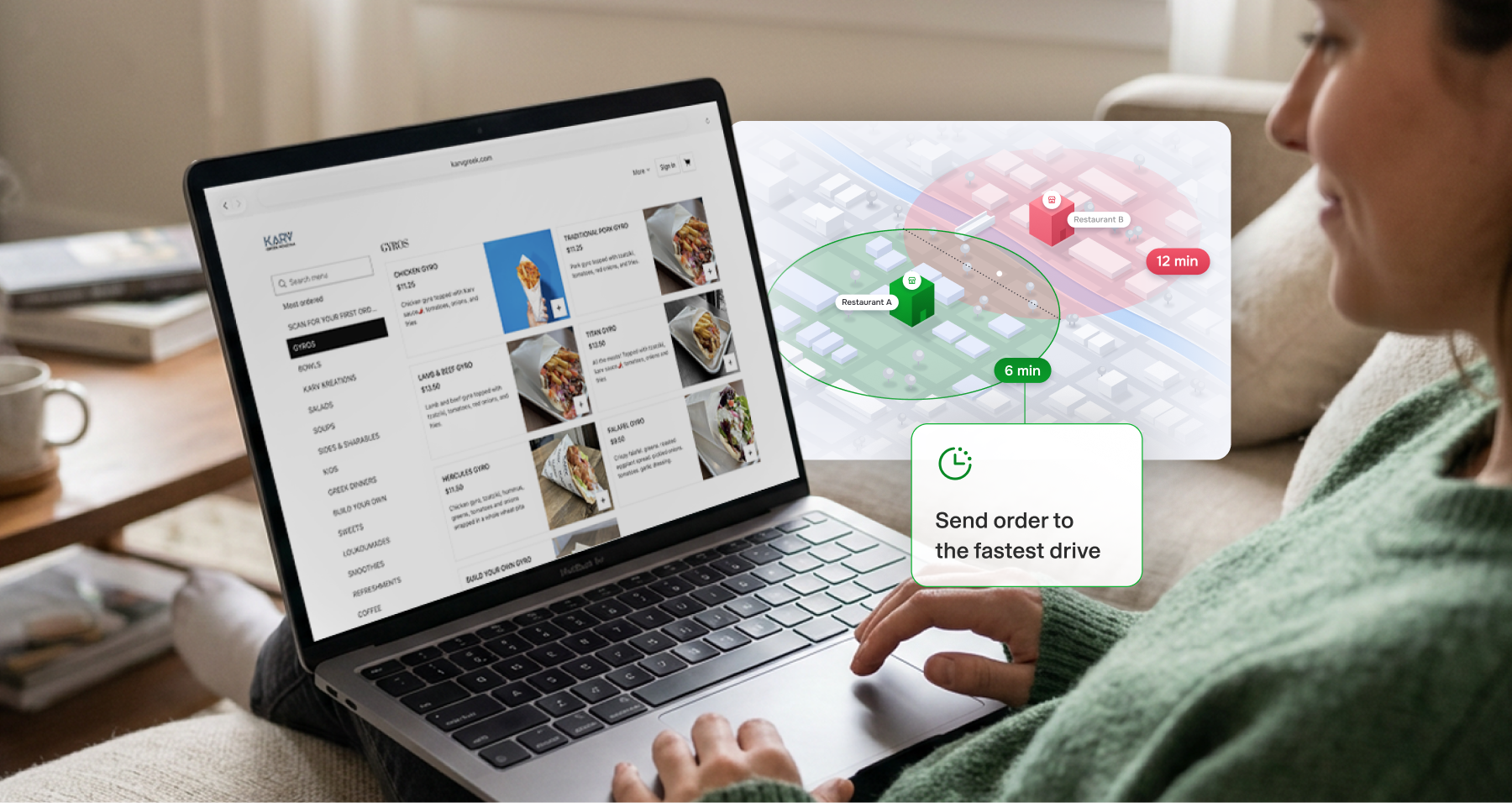
- Delivery zones can be set up by radius, zip code, or custom shape, and overlapping addresses should go to the store with the shortest drive time.
- Menus drift when nobody owns approvals. A shared menu with a few local items keeps every store in sync.
- Every location needs its own Google Business Profile and a location page with details specific to that store.
Online ordering at one restaurant is something you can run from memory. You know the menu, you know how far your drivers go, and you know what the busy hours are.
Open a second location and that changes in the first week. Someone has to decide whether both stores share a menu, which one takes the order from the street between them, and whether the new store gets its own spot on Google. Get them right, and the setup you build for store two is the one that carries you to store 10.
This guide covers how to set up a multi-location restaurant online ordering system, starting with what changes at store two and ending with a checklist for every location you open after that.
What Changes When You Go From One Restaurant Location to Two
Multi-location restaurant management isn’t the same job as running one store but multiplied. The work itself looks different, and it usually changes fastest after opening a second location. Here’s what each part of the job looks like as you grow.
One location
At one store, everything lives in one place.
- You update the menu when an item runs out or a price goes up, and nobody else needs to be looped in
- Your delivery zone is a circle and runs off one kitchen
- Your reports tell you how the restaurant is doing each week
- Your customer list is everyone who’s ordered from you, and your marketing goes to all of them
- You have one Google Business Profile, one website, and one set of reviews
- Prices get set once and adjusted when costs change
There usually isn’t a set process yet, because you haven’t needed one up to this point.
Two locations
Store two is where a lot of operators find out their setup was built for one restaurant. The signs are small and show up in the first week, which makes them easy to fix if you know where to look.
Menus are the first thing to drift. A price changes at the original store and nobody updates the new one. Or a special gets added at one location and guests at the other ask why they can’t order it. If the two stores are meant to serve the same food, they need to run from the same menu, with changes made once and pushed to both.
Delivery zones are the first place two stores can step on each other. If the zones overlap, an address in the middle can be reached by both kitchens. You need a rule for which one takes the order before it happens, so a guest isn’t waiting an hour for their order to arrive.
Reporting gets harder. You now have two sets of numbers to compare. If your system reports each store separately, you end up exporting and merging spreadsheets just to see how the business did that week.
Customer data raises a question you never had to answer. Is it one customer list or two? A guest who orders from both stores shouldn’t show up on the list as two different people. Their loyalty points shouldn’t be separated, either.
Marketing gets a new decision attached to every promotion. Does it run at one store or both? A promo meant to build traffic at the new location can pull orders away from the original one if it goes out to everyone.
Local search needs work before the new store opens. It needs its own Google Business Profile and its own location page, or it won’t show up when someone nearby searches for what you serve.
Pricing turns into a choice. Rent, labor, and delivery distance can all differ between two stores, so you’ll need to decide whether prices stay the same at both or reflect what each one costs to run.
All of that comes down to four decisions that get made in week one, whether you make them on purpose or not:
- Do the stores share a menu?
- Is it one customer list or two?
- Do the delivery zones touch?
- Does the new store get its own page and Google listing?
Make these four calls early and the setup you build for two stores will hold up at five.
Three to 10 locations
Somewhere between three and 10 stores, the four decisions above turn into a more steady process.
Menus usually settle into one core menu with a handful of local items, and someone needs to own what gets approved. Delivery zones start bordering each other on more than one side, so every new opening means checking the map again.
Reporting needs to show both the brand total and each store without anyone building it by hand. The customer list stays as one, with each guest tied to the store they order from most so marketing can reach the right people. Campaigns run at two levels: brand-wide promotions and store-level offers.
Each store needs its own listing, location page and reviews. One store with unconvincing reviews starts to affect how guests see the whole brand. Prices often split into tiers by market.
10+ locations
At 10 stores and up, the work is mostly about keeping things consistent. Menu changes follow a set process. The delivery zone map is managed for the whole brand and redrawn with each opening. Reporting breaks down by region, store and channel.
The customer list drives marketing across every market, and a campaign calendar keeps stores from running promotions that compete with each other. Every listing gets checked regularly for accuracy, and price changes roll out by region with approval.
Plenty of independent groups get here, and the ones that run smoothly usually made clean decisions at store two.
How to Set Up Online Ordering for Each Restaurant Location
The first decision when you set up online ordering for multiple locations is how guests reach each store’s menu. There are two common ways to do it.
One storefront, guest picks a location. Guests land on a single ordering page and choose a store before they see the menu. This works well when your locations are close together and serve mostly the same guests. They know the brand and don’t care much which kitchen makes their order. One page keeps things simple.
A separate ordering page per store. Each location gets its own page with its own menu, hours and details. Guests who search for your restaurant in their neighborhood land on the store that actually serves them, without an extra step.
If your locations serve different neighborhoods, a page per store is usually the better fit. A guest in one part of town doesn’t need to sort through stores across the city to place an order, and each page can show what’s specific to that location. It also sets up each store to be found on its own in local search, which we’ll cover later.
Whichever way you go, some settings have to be set store by store, even if the menu is shared:
- Hours: Each store’s open hours, plus any holiday or seasonal changes, so guests can’t order from a store that’s closed.
- Tax rate: Stores in different cities or counties often have different sales tax rates. Each order needs to be charged the right one.
- Prep times: A busier kitchen or a smaller line needs a longer quoted time. Set it per store so pickup times stay accurate.
- Pickup instructions: Where to park, which door to use, where orders wait. These are different at every location and guests need them before they arrive.
- Service types: Which options each store offers, like pickup, delivery, scheduled orders or catering. A smaller location might do pickup only while your flagship handles everything.
Getting these right before launch is what keeps a new store from sending wrong pickup times or charging the wrong tax in its first week.
How to Determine Delivery Zones for Multiple Restaurant Locations
A delivery zone is the area each store will deliver to. At one location, you draw it once and rarely touch it again. With two or more, every zone has to make sense on its own and next to its neighbors.
Three ways to draw a delivery zone
These are the most common ways to create each zone:
- Radius: A circle of a set distance around the store. This is the simplest option and works best when the roads around a store run evenly in every direction, like a location in a grid of city streets. If a driver can get anywhere inside the circle in about the same time, a radius is all you need.
- Zip code: The zone follows zip code lines. This fits when you want your delivery area to match how locals describe where they live. A guest who knows their zip is inside your area won’t be surprised at checkout, and it’s easy to explain on your website.
- Custom shape: You draw the boundary yourself. Use this when something on the map makes a circle misleading, like a highway with few crossings, a river, or a rail line. An address can be a mile away in a straight line and 20 minutes away by car. A custom shape lets you leave it out.
When two stores can reach the same address
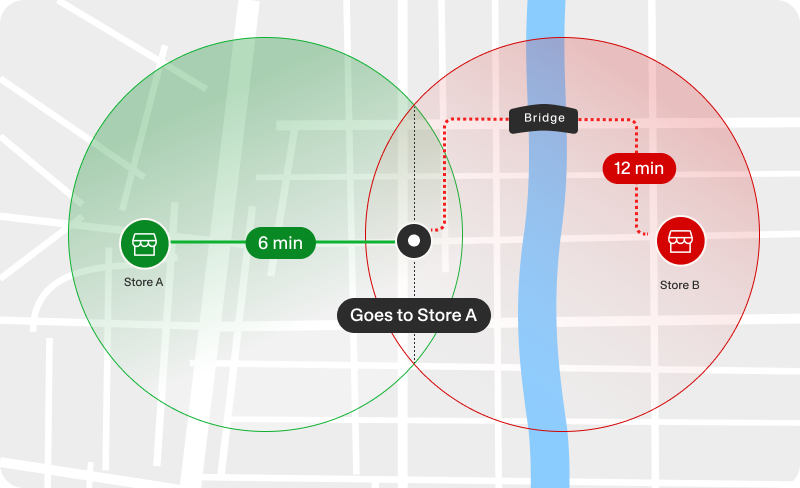
Once two stores have zones, some addresses will usually fall inside both. Decide ahead of time which store takes those orders, so it’s settled by a rule instead of by whichever kitchen sees the ticket first.
Measuring by drive time is typically better than by straight-line distance. Two stores might sit the same distance from an address on the map, but if one has to cross a bridge or loop around a highway exit, its driver will take longer and the food will arrive colder. Assign the overlap to the store that can get there fastest. Check drive times at your busiest hour, not mid-afternoon, since that’s when the difference shows up.
How big each zone should be
A wider zone means more addresses and more orders. It also means longer drives and food that’s been sitting in a bag for longer. Draw each zone around how far the food can travel and still arrive the way your kitchen meant it to. The type of food you serve plays a big part too. Foods like fries and fried chicken, for instance, need to be delivered quicker than a catering tray of sandwiches.
When two stores split the same neighborhood
If two nearby stores both reach the same neighborhood, they’ll end up splitting its orders. One store looks slow and the other looks busy, even though the neighborhood is ordering just as much as before.
It’s tempting to fix this with a discount at the slower store. That usually just moves orders back and forth and costs you margin on both sides. The better fix is redrawing the boundary so each part of the neighborhood belongs clearly to one store.
How to Handle Menu Differences Between Locations
Most groups want the same core menu at every store, with room for a few differences. A location with a bigger kitchen might run a weekend brunch, for example. Or a store near a college campus may add a late-night item. The goal is to allow those differences without ending up with a separate menu for every store that’s difficult to keep in sync.
Pushing a change to every store
When a price goes up or an item gets cut, the change should be made in the shared menu and every store must be updated at the same time. Avoid making the same edit store by store. That’s how one location ends up a week behind, charging the old price or still selling an item the others dropped.
Before a change goes live, check which stores the shared menu covers. If an item should change everywhere except one location, that’s a sign it belongs in the local items for that store instead of the shared menu.
Adding an item at one location
When one store needs an item the others don’t have, add that item to the store’s menu on its own. Don’t copy the full shared menu just to add one item. A copied menu stops getting updates from the original, so the next price change across the brand misses that store entirely.
Keeping local items small and clearly labeled also makes it easy to see later what’s different about each store, and whether a local item has earned a spot on the shared menu.
Why menus drift
Menus tend to drift apart when nobody owns approvals. A manager adds a special, or someone adjusts a price to match a supplier increase. Another store hears about the changes two weeks later. While each change made sense on its own, nobody was deciding which ones should reach every store.
The quick fix: Decide who approves menu changes, which changes a store manager can make alone (like marking an item sold out), and which ones need sign-off (like prices and new items). Good software won’t stop drift on its own, but it will make it visible. When every store runs from one shared menu, any difference between locations is one you chose.
How to Get Each Location Found on Google
Many people find a restaurant by searching nearby, whether they type your name or something like “pizza near me.” Each of your stores needs to show up in local searches on its own, so your guests can find them.
Give every location its own Google Business Profile
Each store needs its own Google Business Profile, instead of relying on one profile for the whole brand. Google shows local results based on where the searcher is. That means a single brand profile can only point to one address. The guest across town sees a store that’s 20 minutes away, or doesn’t see you at all.
A profile per location means each store shows up with its own address, hours, phone number, photos and reviews, making it easier for guests to find and order from it.
Keep name, address and phone identical everywhere
Your name, address, and phone number (often called NAP) should match exactly everywhere a store is listed: its Google profile, its location page, the delivery apps, and directory sites. Small differences, like “Street” on one listing and “St.” on another, make it harder for Google to tell that those listings are the same store.
Another thing to look out for is a duplicate listing. It often happens after a move, or when someone creates a new profile instead of claiming the existing one. Two listings for one store split its reviews, confuse guests about which hours are right, and can send people to an address that’s no longer accurate. If you find a duplicate, merge or remove it rather than letting both sit there.
Make each location page worth ranking
Each store should also have its own page on your website, and that page needs to say something about that location. Include details a guest in that neighborhood would want to know:
- The neighborhood and nearby landmarks
- Parking and how to find the pickup spot
- The local team, like the general manager or a longtime cook
- Items that are only on the menu at that store
- Hours, phone number and a link to order from that location
If 10 location pages say the same thing with only the address swapped out, Google has little reason to rank any of them, and guests learn nothing about the store near them. The details that make each location different are the same ones that help it show up in search.
Earn reviews at every store
Reviews are tied to each location’s profile, so each store builds its own reputation. One store with slow tickets or wrong orders can collect weak reviews that guests see when they search your brand, even if every other location is doing well. Ask for reviews at every location, and route review requests to the store the guest actually ordered from, so each one gets credit for its own service.
Does Online Ordering Cost More as You Add Locations?
It depends on how the system charges you. With a per-order fee or commission, your bill grows with your sales, so every new store that does well costs you more. With a flat subscription, the price stays the same no matter how many orders come through, so your cost per order drops as you grow.
Before you sign with any multi-location restaurant software provider, ask:
- Is there a per-location fee?
- Does the rate drop as you add stores?
- What does it cost to onboard a new store?
- Is there a minimum?
- What happens at renewal?
The answers tell you what the system will cost at five stores, not just what it costs today.
New Restaurant Location Setup Checklist
Work through these in order before a new store takes its first online order. Save the checklist to use for every location you open.
- Create and verify the Google Business Profile. Start early, since verification can take time.
- Assign the menu. Connect the store to the shared menu and add any local items.
- Set hours and tax. Enter the store’s hours, holiday hours and local sales tax rate.
- Set prep times, pickup instructions, and service types. Decide what this store offers at launch.
- Draw the delivery zone. Check it against neighboring stores and settle who takes any overlap.
- Get the kitchen tablet or printer live. Confirm orders reach the right screen or printer at this store.
- Publish the location page. Include neighborhood details, parking, hours and a link to order.
- Route review requests to this store. Make sure guests who order here are asked to review this location.
- Place a test order through the full flow. Order, pay, receive the ticket in the kitchen and complete pickup or delivery before going live.
How Owner Supports Multi-Location Restaurants
Owner gives every location what it needs to get found, turn guests into direct orders, and bring them back, with the same kind of setup national chains run. My own restaurant is proof. At Mattenga’s Pizzeria, a seven-location restaurant in San Antonio, we grew our sales by $192,000 in 30 days with Owner, including 87% growth at our main location.
Here’s how Owner supports multi-location restaurants:
Online ordering at every store. Online ordering is included on all Owner plans, so each new location can take direct orders from day one. Brand-level menus connect across locations, so turning one off hides it at every store that’s connected to the shared menu.
One customer list across stores. Guests who order online or at the counter through Owner POS land in the same customer list, so you can bring them back no matter which store they ordered from.
Delivery zones set per location. Delivery is turned on store by store, with zones drawn by radius, zip code or custom shape to match the roads around each one.
A page and a Google listing for each store. Owner builds your restaurant website with a page for every location, and restaurant SEO is part of the platform. Restaurants that switch to Owner see about 20% more Google traffic in their first 30 days. Saffron Indian Kitchen, for example, ranks in Google’s top three for 13 searches and gets more than 630 new customers a month from Google.
Reporting that rolls up to the brand. Reporting shows each store and the business as a whole, without exporting and merging spreadsheets.
If you’re opening your second location or your tenth, get a free demo and we’ll walk you through how it works across your stores.
Set Up Every Location to Grow From Day One
Most of what makes restaurant group online ordering work gets decided early, usually in the first weeks of opening your second location. Share one menu and one customer list, draw delivery zones that don’t step on each other, and give every location its own page and Google listing. Make those calls once and each new store starts with a setup that’s already been tested, and every opening gets a little easier than the last.
If you’re planning your next location, get a free demo and we’ll show you how Owner sets up online ordering across every store.
Frequently Asked Questions About Multi-Location Online Ordering
What’s the best online ordering setup for a restaurant with multiple locations?
The best multi-restaurant online ordering system runs every store from a shared menu and customer list, with settings like hours, tax and delivery zones handled per location. If your stores serve different neighborhoods, give each one its own ordering page so local guests land on the right store. Owner is a great choice for multi-location restaurants.
Can each location have its own menu, prices and hours?
Yes. Hours, tax rates and service types should always be set per store. Menus and prices can differ too, but keep a shared core menu and add local items on top, so changes still reach every store.
How do multi-location restaurants keep menus consistent?
They make changes once, in a shared menu, and decide who approves them. Store managers can handle things like marking an item sold out, while prices and new items go through one person.
What happens when two locations can both deliver to the same address?
Set a rule before it happens. Assign the overlap to the store with the shortest drive time, not the shortest straight-line distance, and redraw the boundary if two stores keep splitting the same neighborhood.
Should each restaurant location have its own Google Business Profile?
Yes. Google shows local results based on where the searcher is, so each store needs its own profile with its own address, hours and reviews to show up for nearby guests.
Do I need a separate website for each restaurant location?
No. One website with a page for each location is usually better. Every store benefits from the same brand site, and each location page can still rank for searches in its own neighborhood.
Can I use one restaurant POS system across multiple locations?
Yes. Most modern restaurant POS systems let you run every location from one account. Each store keeps its own hours, tax rate, and staff, while menus, customer data, and reporting live in one place.
Owner’s POS works this way. Update a shared menu once and it reaches every store. Every guest lands on one customer list, and reporting shows each location alongside the whole business.